
Image Converter Online – Change Formats for Your Photos
Use the image converter to save a supported JPG, PNG, WebP, AVIF or JFIF image in a different format. Choose the output and preview it before downloading.
Drop or paste an image
JPG, JPEG, JFIF, PNG, WebP and AVIF up to 25 MB. AVIF depends on browser decoding.
Live Preview
JPEG can keep supported descriptive fields when unchecked. GPS and embedded previews are always removed.
Conversion Settings
Quality applies to JPG and WebP. PNG is lossless, so it has no quality setting.
This colour fills transparent areas in JPG and when transparency is turned off for PNG or WebP.
Download
Converting never changes your original file — the download is a new file with the converted format.
How to convert an image
- Open or select. Set the output format before choosing an image or change it in Conversion Settings after the image loads.
- Review settings. Compare the preview with your destination in mind. Adjust Quality for JPG or WebP. For a transparent source destined for JPG, try the background colour on which you will place it.
- Save and check. Download the converted image. Open the saved file and confirm its format, dimensions and size before sending or replacing the original.
Choose an output format in the image converter
JPG for a JPEG-only destination
Use JPG if a form, document editor or print service asks for a JPEG. JPG and JPEG describe the same format. The converter uses the .jpg extension and fills transparent areas with the selected background colour. White is the starting value. A light background is a useful default for a document, but match the colour to the intended placement.
PNG for editing or a sharp graphic
Use PNG when you need transparent edges, clean interface text or a file that can be saved again using lossless encoding. It stores the pixels the browser has decoded. It cannot restore texture or colour detail that was removed by a source JPEG. Keep the original as a separate master.
WebP for web delivery
Try WebP when the destination accepts it. On a product listing or a site you manage, export at two quality settings and compare exact file sizes at the displayed size. For tiny text, check the exported image at its native size as well. A smaller file is only worth using when its edges and contrast still meet your needs.
Format reference. WHATWG Canvas image encoding.
Image Converter measured example
An illustrated settings screenshot with fine text and narrow bars was exported to WebP at 80% quality. This is a useful check for interface graphics, where text edges may matter more than the reduction in bytes.
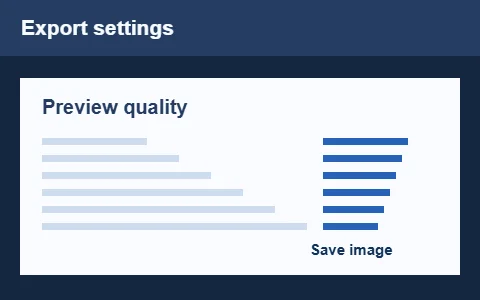
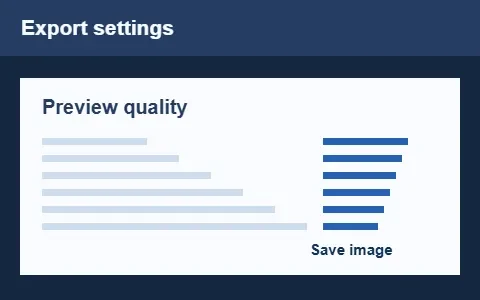
| Metric | Input | Output |
|---|---|---|
| Container | PNG | WebP |
| Pixel dimensions | 480 × 300 px | 480 × 300 px |
| File size | 10,929 bytes | 4,966 bytes |
| Transparency | Opaque corner | Opaque corner |
| EXIF marker | Absent | Absent |
| Quality setting | Source file | 80% |
The downloaded file was 54.6% smaller in this run. The figures are WebP display copies of the same input and download. The table uses exact file bytes from the original test and an independent decoder. Results depend on the source, selected settings and browser encoder.
Compare the input and output
| Input | Output |
|---|---|
| JPG, PNG, WebP, AVIF or JFIF | JPG, PNG or WebP |
Settings, format limits and troubleshooting
The quality slider appears for JPG and WebP. PNG has no quality scale. Advanced Options can keep transparency for PNG or WebP, set a new filename, or request supported descriptive EXIF fields on JPEG-to-JPEG exports. GPS and embedded previews are excluded from that metadata path.
Files up to 25 MB and up to 8,192 pixels per side can be opened when the browser has enough memory. AVIF input and WebP output depend on browser capabilities. A file with the right extension can still fail if its contents are damaged or the decoder cannot read it. For an animated source, use this tool for a single still. It does not export an animation.
For a target pixel size, use the image resizer before converting the file.
Frequently asked questions
Will it send my files to a server?
The image is opened, previewed and encoded inside your browser. The download is a new file on your device.
What if my upload form requires a JPEG?
Choose JPG. If the source had transparency, choose the background colour before saving. Check the form’s dimension or file-size limit separately.
Can I copy the output from the preview?
Copy as PNG copies the preview as a PNG when the browser grants clipboard permission. Use Download for the selected JPG, PNG or WebP format.