Increase KB Size of Image – Set a Minimum File Size
To increase the KB size of an image for a minimum upload size, start with the required format and pixel dimensions.
Drop images here, paste from clipboard, or choose files
Supports JPG, PNG, WebP, GIF, and BMP • Max 25 MB per file
Tip: You can also copy any picture to your clipboard and press Ctrl+V to paste
1 KB is 1,024 bytes. Increasing file size does not add original detail.
All Processed Images
Files download separately in the displayed order.Compare the saved byte count with the actual requirement. A larger file size alone does not add detail.
How to Increase Image Size in KB Without Unnecessary Quality Loss
Some upload forms reject photos that are too small — they ask for a minimum file size, not a maximum. This tool grows a photo's KB size honestly: it re-encodes at the highest quality and, if you allow it, increases the dimensions. An optional padding step can top the file up to an exact size, and the tool explains exactly what it did.
Prepare Input Files or Images
Add a JPG, PNG, WebP, GIF or BMP file up to 25 MB. The tool is meant for images that are below a form's minimum size — if your image is already above the target, keep the original too. The editor checks the actual re-encoded output against the minimum.
Choose Settings and Preview Changes
Set the minimum size in KB, then choose how the file may grow: highest-quality re-encoding is always applied, dimension upscaling is on by default, and padding is off unless you enable it. Padding adds valid data inside the selected format to reach the minimum. The encoded pixels stay the same. Every result shows the original size, the new size and what was done.
Download and Verify the Output
Download the result and check its size in your file manager before uploading it to the form. The size shown in the result is the size of the downloaded file.
Increase Image Size in KB: Target File Size and Quality Settings
Re-encoding at a higher quality can use more bytes. Upscaling increases the pixel count using existing detail. Padding adds bytes without changing the dimensions.
Recommended Default Settings
Leave upscaling off when the receiver requires fixed dimensions. Enable padding only if allowed, then verify the format and final byte count.
Increase Image Size in KB: Examples and Use Cases
Minimum-size requirements appear on exam portals, job applications and ID uploads that expect a scanned document of a certain size. A photo taken on a phone with aggressive compression, or a heavily compressed screenshot, can fall below the minimum even when it looks fine.
Real Input and Output Example
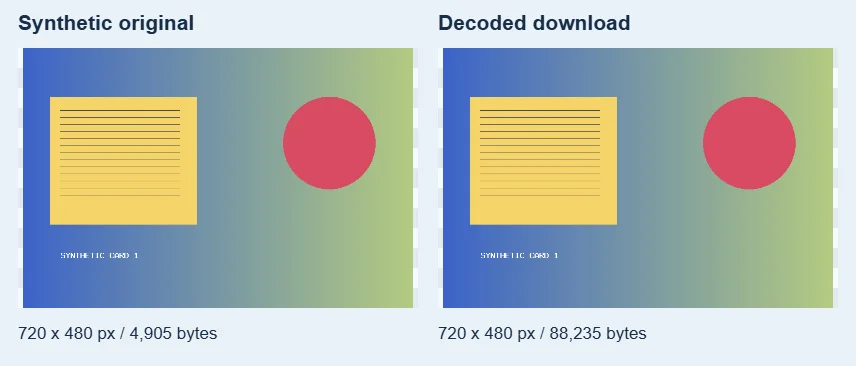
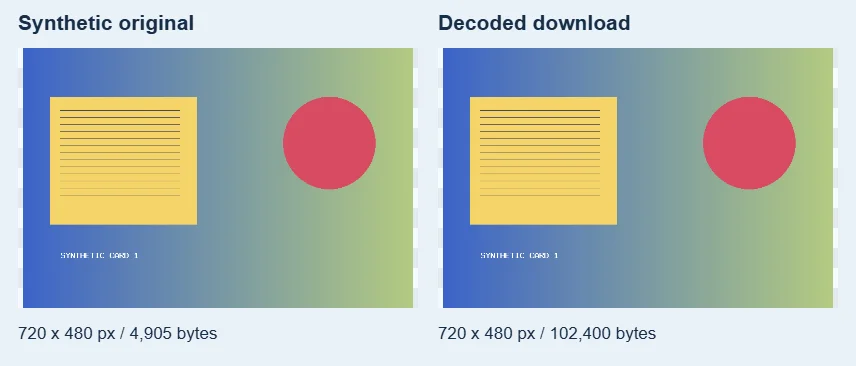
With a 100 KB minimum and upscaling off, the synthetic example exported at 88,235 bytes without padding and 102,400 bytes with padding. Both JPEGs retained their 720 by 480 pixel shape.
Supported Formats, Target KB and Image Quality Limits
The tool accepts JPG, PNG, WebP, GIF and BMP files and exports JPG, PNG or WebP. PNG output is often the largest, because PNG is lossless — a photo saved as PNG can be several times the size of the same photo as a JPEG, which is useful when you need a bigger file.
Image Quality, Size and Compatibility Checks
Two honest limits apply. First, growing a file does not add detail that was never there: an upscaled photo is larger, not sharper, and re-encoding cannot restore detail a previous compression removed. Second, upload portals can have their own rules about padded images, so if a form refuses a padded file, use the quality-and-upscale result instead and check the form's exact requirement.
Common Increase Image Size in KB Problems and Fixes
If the file stays below the minimum, check whether the receiver allows a larger image or a different format. A padded file can meet the target and still be rejected by a receiver.
Troubleshooting Upload, Preview or Export Issues
If a form rejects the downloaded file, check whether padding was enabled — try the result without padding first. If the result looks blurry, the source was small: upscaling enlarges the picture but cannot sharpen it. Files over 25 MB, damaged files and unsupported types are rejected with a message naming the file.
Frequently Asked Questions About Increase Image Size in KB
Why would anyone need a larger image file?
Some forms and portals require a minimum file size — for example, an ID photo or scanned document must be at least 100 KB. A heavily compressed phone photo can fall below that minimum even when it looks fine, and the form rejects it.
Does increasing the KB size improve photo quality?
No. A larger file holds more data, but it cannot add detail the original never had. Upscaling makes the picture bigger, not sharper, and re-encoding at 100% quality only preserves what is already there.
What is padding, and is it safe?
Padding adds bytes while keeping the picture dimensions the same. Some upload services can reject padded files. Follow the requirements of the receiving service.
What if my image is already bigger than the target?
Keep your original if it already satisfies the form. The editor re-encodes the selected format and checks the downloaded file against the minimum.
Are my images uploaded to a server?
No. Everything runs in your browser; your images never leave your device and disappear when you close or refresh the page.
Related Tools and Next Steps
Separate a minimum file size from actual detail
To increase KB size of image files for an upload, start with the format and dimensions required by that destination. A larger file is not evidence of a clearer photo. Open the export and check the byte count and pixel dimensions independently.
MDN compares the visual and encoding properties of common formats.
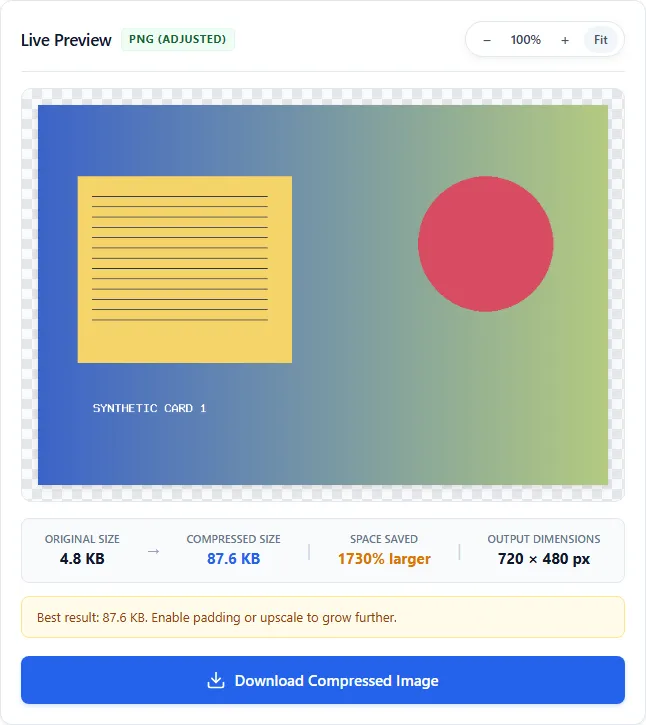
Increase KB size of image files and inspect the result
Set the minimum only after checking whether the portal also specifies a maximum. If the image is already larger than the requested minimum, keep a copy of the original and check its format. Compare pixel dimensions independently when a portal requires both a minimum file size and a fixed pixel count.
With padding off, a simple JPEG can stay below the requested minimum even when the quality setting is high. If the receiver accepts padding, enable it and verify the byte count. Leave upscaling off when the submission needs the same pixel dimensions.