Photo Collage Maker – Put Two Photos in One Frame Free
Put two photos in one frame — side by side or stacked — or arrange several pictures into a grid, free and in your browser.
Drop photos here, paste them, or choose files
JPG, PNG, WebP, GIF and BMP. Your photos never leave this browser — nothing is uploaded.
Your photos
Drag to reorder. In grid-split mode, click a photo to choose which one is split.Live Preview
Add your photos, pick a frame or grid layout, adjust the spacing, border and background colour, then download the result as a PNG or JPG. Your photos are never uploaded, and there is nothing to install.
How to Make a Photo Collage Online
Making a collage takes four quick steps: add your photos, pick a layout, adjust the spacing and background, and download. The tool opens with the two-photo frame layout, because that is the most common job — two pictures in one frame — but grids, rows and columns are one click away.
Prepare Input Files or Images
Click "Choose photos" to pick files from your device, drag them onto the drop area, or copy a photo and paste it straight into the page. JPG, PNG, WebP, GIF and BMP files are accepted, and each file must be under 25 MB. For the sharpest collage, start from the highest-resolution versions of your photos — the collage keeps each picture at its natural size where it can, so a small source photo stays small in the frame.
Choose Settings and Preview Changes
Pick a layout: the two-photo frame (side by side or stacked), a 2 × 2 or 3 × 3 grid, a single row or column, or an automatic grid that shapes itself to the number of photos. "Fit" shows each whole photo inside its cell; "Fill" crops each photo so it covers its cell with no empty space. Spacing adds a gap between photos, the border control draws a coloured frame around each photo, and the background colour fills the gaps and any empty space. The preview updates live as you change anything.
Download and Verify the Output
Click "Download collage" to save the combined picture as a PNG or JPG. The final size in pixels is shown next to the download button, so you know the exact dimensions before you save. Open the downloaded file and check it: the photos should appear in the same order as the thumbnails, with the spacing, border and background you chose.
Photo Collage Maker: Layout, Alignment and Spacing Options
Every layout is built from equal cells: each photo gets a cell the size of the largest photo in the set, so the frame stays even. In the two-photo frame, the two cells sit side by side or one above the other. In a grid, photos fill the cells left to right, top to bottom, and extra rows are added automatically if you load more photos than the grid holds. Spacing is the gap between cells, measured in pixels, and it shows the background colour you pick.
Recommended Default Settings
For a two-photo frame, the defaults are a good starting point: side-by-side layout, "Fit" sizing so nothing is cropped, 10 px spacing and a white background. If the photos have different shapes and the empty space bothers you, switch to "Fill" — it crops the edges instead. For a grid of similar photos, 10–20 px spacing with a thin dark border gives a clean, framed look.
Combine Two Photos In One Frame Online: Examples and When to Use It
Two photos in one frame is the everyday collage: a before-and-after pair, two angles of the same product, a photo with its close-up, or two friends side by side for a single post. Side by side suits landscape photos and wide screens; stacked suits portrait photos and phone screens. For three or more photos, a grid keeps the result tidy — a 2 × 2 grid for four photos, a 3 × 3 grid for up to nine.
Real Input and Output Example
Fit keeps each source visible within its cell and can enlarge a small square. Fill can crop the wider photo to cover its cell. Compare the preview before choosing a close crop.
Supported Image Types, Transparency and Export Quality
The collage maker accepts JPG, PNG, WebP, GIF and BMP uploads and exports to PNG or JPG. PNG is the best choice when you want a transparent background or crisp edges on graphics and text. JPG produces smaller files for photographs and is the safest choice for sharing anywhere. The Instagram grid mode splits one photo into tiles — 3 × 3 by default — and each tile downloads as a separate numbered file in reading order, so you can post them in sequence; the tiles are separate files, not a ZIP.
Image Quality, Size and Compatibility Checks
Fit keeps the full source within the cell and can enlarge a small image. Fill covers the cell and can crop its edges. Inspect the generated image at the final display size when the inputs have very different dimensions.
Common Photo Collage Maker Problems and Fixes
Most collage problems come from one setting or from the source photos. A photo that looks small in its cell is a small source photo shown at its natural size — "Fill" sizing will crop it to cover the cell instead. Empty space around a photo means "Fit" sizing is showing the whole picture in a cell shaped by a larger photo; switching to "Fill" or to a layout with matching photo shapes removes it. If a download does not start, check that your browser is not blocking downloads from this site, then try again.
Troubleshooting Upload, Preview or Export Issues
A file that refuses to load is usually an unsupported type or a damaged file — the tool names the file and says what is wrong. If the preview stops updating, the combined image may exceed the 8,192 px limit; the error message shows the size it would have been. If grid-split tiles do not all download, your browser blocked multiple downloads — allow them for this site and use the download button again. Very large photos on low-memory phones can be slow to process — try fewer or smaller source photos.
Related Tools and Next Steps
Merge Images, Overlay Images, Image Resizer, Reduce Image Size in KB.
Balance the photos in a single frame
Two photos in one frame work well when both subjects remain readable at the final size. Use a repeated layout for a set of comparisons and check the edges where the images meet. Use the two-photo workspace for a simpler horizontal pair.
Frequently Asked Questions About Photo Collage Maker
Mobile Support, File Privacy and Download Options
The collage maker works in any modern mobile or desktop browser. Your photos are processed locally with the Canvas API and never leave your device, and downloads save straight to your phone or computer.
How do I put two photos in one frame?
Add two photos — the tool opens with the two-photo side-by-side frame already selected, so the collage is ready as soon as both photos load. Use the layout menu to stack them instead, adjust the spacing and background colour if you like, then click "Download collage".
How many photos can I put in one collage?
There is no fixed limit, but the frame layouts use the first two photos only. For more photos, choose a grid, row or column layout — grids grow extra rows automatically when you add more photos than the grid holds. Very large batches of big photos can slow the page down, so work in smaller groups if needed.
What is the Instagram grid mode?
Instagram grid mode splits one photo into tiles — 3 × 3 by default, or any grid from 1 × 1 to 5 × 5 — so you can post the tiles in order and they form the full picture on your profile grid. Each tile downloads as a separate numbered file (tile 1 is the top-left, then across each row). There is no ZIP file; your browser may ask permission to allow multiple downloads.
Are my photos uploaded to a server?
No. The collage is built entirely in your browser using the Canvas API. Your photos are never sent to a server, never stored, and disappear when you close or refresh the page.
Why is there empty space around one of my photos?
For two photos in one frame, Fit centers each full image in its cell. Fill covers the cell and can hide the outside of a portrait or a wide photo.
Give each photo enough space in the frame
If you place two photos in one frame, decide which photo should draw the eye first. For a neutral comparison use equal panels, similar subject sizes and a small gutter. Inspect the final crop on mobile before downloading.

Put two photos in one frame at a consistent visual scale
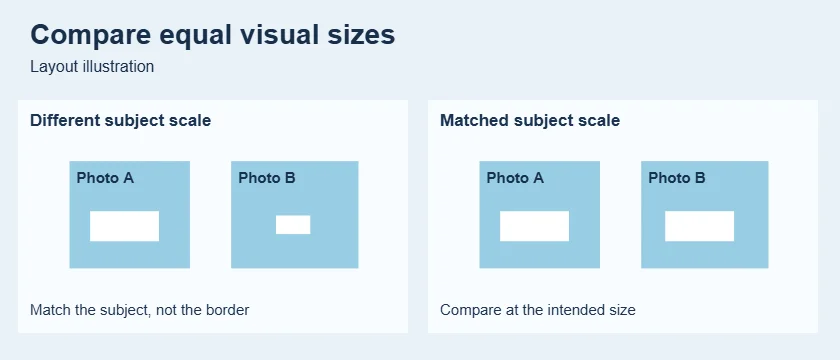
If two photos show the same object from different distances, crop both to the same subject size before assembling the frame. For two unrelated images, leave margins where needed so neither photo loses its outer details. Preview the combined image at the size where it will be read.
MDN shows how fit and fill affect images with different aspect ratios.