Images to PDF – Arrange Photos and Export One Document
Turn your pictures into a single PDF in seconds — add JPG, PNG, WebP, GIF or BMP images, arrange them in page order, and download one PDF file.
Drop images here, paste them, or choose files
JPG, PNG, WebP, GIF and BMP. Each image becomes one page of the PDF, in the order shown below. Your images never leave this browser — nothing is uploaded.
JPG-only mode accepts JPEG files only — use it for the JPG-to-PDF workflow. Switching to it removes any non-JPG images already loaded, and says so.
Your pages
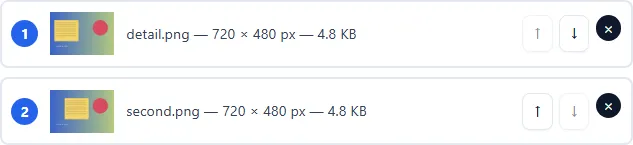
List order is page order. Drag a page to move it, or use the ↑ ↓ buttons (the buttons work on touch screens too).Each image becomes one page. Need a small file for a form or an upload limit? The target-size mode aims for under 200 KB, 500 KB, 1 MB or 2 MB and tells you the exact size it reached. Everything runs in your browser, so your images are never uploaded.
How to Convert Images to PDF in Page Order
Converting images to PDF takes four quick steps: add your pictures, arrange them in page order, choose a page size and a quality or size target, and download the PDF. There is nothing to install and no account to create, and the tool works the same way on a phone as on a computer.
Prepare Input Files or Images
Click "Choose images" to pick files from your device, drag them onto the drop area, or copy an image and paste it straight into the page. JPG, PNG, WebP, GIF and BMP files are accepted, and each file must be under 25 MB. For the sharpest result, start from the highest-resolution version of each picture — shrinking a large photo keeps it crisp, while enlarging a tiny one cannot add detail that was never there. If you only have JPG files and want the JPG-to-PDF workflow, switch "Input images" to "JPG only".
Choose Settings and Preview Changes
The page list shows your images in PDF page order — drag a page to move it, or use the up and down buttons, which also work on touch screens. Pick a page size: "Fit to image" makes each page exactly the size of its picture, while A4 and Letter fit the picture inside a standard page, keeping its proportions, with an orientation choice. Then pick a size mode: Quality (a JPEG quality slider) or Target size (the tool works towards under 200 KB, 500 KB, 1 MB, 2 MB, or a size you type).
Download and Verify the Output
Click "Create PDF", wait for the summary — it shows the actual file size, the number of pages, and the quality used — then click "Download PDF". The file downloads as "images-to-pdf.pdf". Open it in any PDF reader and check the page order and the page count: they should match the list on the page exactly. If you used a target size, the summary also tells you whether the target was reached or, honestly, that it could not be reached and what the smallest size was.
Images to PDF: File Order, Pages and Output Settings
One image becomes one page, and the list order is the page order — the first image in the list is page 1 of the PDF. Page size decides the shape of each page: fit-to-image pages are exactly as wide and tall as their pictures (one point per pixel), while A4 (210 × 297 mm) and Letter (8.5 × 11 in) pages are standard print sizes with the picture fitted inside and centred. Orientation can follow each image automatically, or be forced to portrait or landscape for every page.
Recommended Default Settings
For most jobs, keep "Fit to image" and 90% quality: the PDF looks like the pictures and stays a reasonable size. Use A4 when the PDF will be printed or submitted to a form that expects A4 pages. Use the target-size mode when an upload limit matters — under 200 KB is the usual form limit, and under 1 MB or 2 MB suits email attachments. If the target cannot be reached, the tool says so instead of pretending.
Images to PDF: Examples and Use Cases
People turn images into PDFs for everyday jobs: joining receipt photos into one expense document, combining screenshots into a single file to send, assembling scanned form pages, or collecting photos into a document that opens the same way on every device. A PDF keeps the page order fixed, which a folder of images does not — that is the whole point of the format here.
Real Input and Output Example
Take three photos — a 1200 × 800 px landscape shot, a 600 × 900 px portrait, and a 400 × 400 px square — and load them in that order. With "Fit to image" and 90% quality, the PDF has three pages: page 1 is 1200 × 800 points, page 2 is 600 × 900 points, page 3 is 400 × 400 points. With A4 and auto orientation, the same three pictures land on A4 pages — landscape, portrait, portrait — each fitted and centred. With the 200 KB target, the tool lowers the quality until the whole PDF fits under 200 KB, and reports the size it actually reached.
If the pages you need are already in PDF files, use Merge PDF to combine the existing pages. Use this image-to-PDF tool when each input is a photo or graphic you want on its own page.
PDF Files, Page Sizes and Document Limitations
PDF pages are measured in points (72 points make one inch), which is why "Fit to image" pages are measured in points equal to the pixel size. A4 is 595.28 × 841.89 points and Letter is 612 × 792 points. The pictures inside the PDF are stored as JPEG images, which keeps the file small — and means transparent PNGs are flattened onto a white background, because JPEG has no transparency. Individual files over 25 MB are rejected with a clear message, and the output is capped at 8,192 pixels on a side, which is well beyond what browsers handle reliably.
Image Quality, Size and Compatibility Checks
The PDFs this tool creates are standard PDF 1.4 files that open in any PDF reader, on any device — they were verified with a real PDF parser during testing, checking the page count, the page dimensions, and the file structure itself. Shrinking a picture keeps it sharp; the target-size mode only shrinks images when lowering quality alone cannot reach the target, and it always reports when it did. If a PDF looks wrong in a reader, re-create it with "Fit to image" and 90% quality first — that is the simplest, most compatible output.
Common Images to PDF Problems and Fixes
Most problems come from the page order or the size target. Pages in the wrong order mean the list order was wrong — drag the pages into place, or use the move buttons, then create the PDF again. A PDF that is too large for an upload limit means the target was missed: the summary shows the smallest size reached, and the fix is a larger target, fewer images, or smaller source pictures. A file that refuses to load is usually an unsupported type or a damaged file — the tool names the file and says what is wrong.
Troubleshooting Upload, Preview or Export Issues
If a file will not load, check that it is a JPG, PNG, WebP, GIF or BMP under 25 MB, and that it opens in your photo viewer — a file with the wrong extension or damaged data cannot be used. If the "Create PDF" step feels slow in target-size mode, that is the tool trying different quality levels to reach your target; very large photos take longer, so shrinking them first helps. If the download does not start, check that your browser is not blocking downloads from this site, then try again.
Related Tools and Next Steps
Merge Images, Image Resizer, Reduce Image Size in KB, Compress Image to 200KB.
Check page order in the saved PDF
Look at the first and last pages in a PDF viewer after exporting. If the order is wrong, reorder the input thumbnails and export again. For sources already saved as PDFs, use Merge PDF so existing pages can be combined directly.
Choose between an image PDF and searchable text
Images saved as pages in a PDF can still be pictures. If you need to select or search for text, check the downloaded PDF in a reader. Scanned pages may need a separate OCR step. Adobe explains how a searchable text layer is added.
Frequently Asked Questions About Images to PDF
Mobile Support, File Privacy and Download Options
This page works in any modern mobile or desktop browser with JavaScript enabled: tap "Choose images" to pick photos from your phone, or drag files in on a computer. Your pictures are processed locally and never uploaded, and they disappear when you close or refresh the page. The PDF downloads as one file, straight to your device.
How do I merge JPG images into one PDF under 200 KB?
Add your JPG images, switch "Size mode" to "Target size", pick "Under 200 KB", and click "Create PDF". The tool lowers the JPEG quality first, then shrinks the images only if quality alone cannot reach the target. The summary shows the actual size reached — if 200 KB cannot be reached, it says so plainly and shows the smallest size it achieved, so you can decide whether to accept it or try a larger target.
Can I change the order of the pages in the PDF?
Yes. The list order is the page order: drag a page to move it, or use the up and down arrows on each row — the arrows work on touch screens too. Create the PDF again after reordering, because the download is only generated from the current list order.
What page size should I choose — fit to image, A4 or Letter?
Fit to image makes each page exactly the size of its picture, which is best for viewing on screen and keeps the PDF simple. Choose A4 or Letter when the PDF will be printed or submitted to a form that expects a standard page size — the picture is fitted inside the page, keeping its proportions, and centred.
Why couldn't the tool reach my target size?
Some pictures hold too much detail to fit a small target: a very detailed or very large photo needs a minimum number of bytes even at the lowest quality and the smallest size the tool will shrink to. When that happens the tool reports the smallest size it reached instead of pretending it hit the target. Try a larger target, fewer images, or smaller source pictures.
Are my images uploaded to a server?
No. The PDF is built entirely in your browser: your images are drawn onto a canvas, encoded as JPEG, and assembled into a PDF file locally. Nothing is sent to a server, nothing is stored, and your images disappear when you close or refresh the page.
Turn an ordered pair of photos into one PDF
When you convert images to PDF, put the cover or identifying page first and use the up and down controls to move any reversed scan. A4 and Letter help when the document will be printed, while fit-to-image avoids forcing photos of different shapes onto equal paper sizes.