
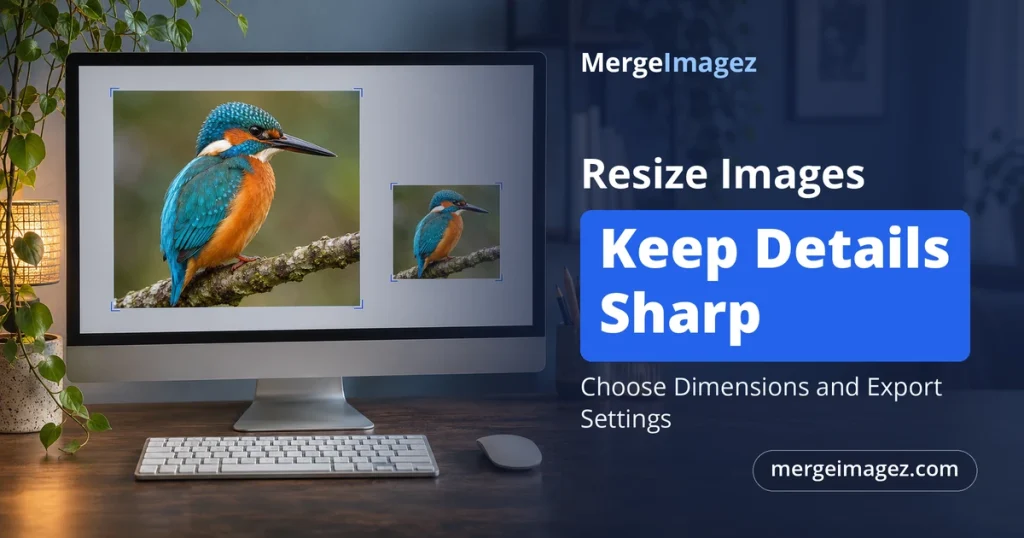
Browser
How to Resize Images for Sharp Photos and Smaller Files
Set dimensions and compare a proportional resize, a square crop and padding.
Read guideChoose a guide for the app or device you already use. The links below cover desktop editing, mobile collages, and resizing with measured examples.
Showing 9 of 9
Browser
Set dimensions and compare a proportional resize, a square crop and padding.
Read guide →
Windows
Use Paint to expand a canvas, align images and save the combined result.
Read guide →
macOS
Compare Preview, Pages and Keynote for lining up photos and saving one image.
Read guide →
iPhone
Combine photos with Shortcuts and check the order before saving.
Read guide →
Android
Build a photo collage and adjust how each image fits its cell.
Read guide →
Photoshop
Combine pictures on separate layers and export the composed image.
Read guide →
Lightroom
Match exposures before merging and choose between a panorama and a simple layout.
Read guide →
Google Photos
Compare the collage workflow in the app and on the web.
Read guide →
Canva
Choose a grid or place photos freely, then export your design.
Read guide →No guides match. Try a different search or reset the filters.
No — unless the guide itself is about an installed app (Photoshop). Every guide also explains the browser-tool option, which needs nothing installed: open the tool page, use it, and close it.
Yes. Every tool linked from these guides is free, needs no account, and runs entirely in your browser — your images are never uploaded.
Use the device guides to merge photos with the software you already have. For a workflow that starts and ends in your browser, browse the image tool directory.
How to Merge Images in Photoshop, How to Combine Pictures on iPhone, How to Combine Images on Android, How to Resize Images Without Losing Quality, How to Merge Images in Lightroom, How to Merge Images in Google Photos, How to Merge Images on Mac, How to Merge Images in Canva, How to Merge Images on Windows, Merge Images, Image Resizer, All Image Tools.
Keep source photos if you need another layout later. Open the relevant platform guide for editable layers, collage cells or panorama alignment.
Use the guide that matches both the app and the result. A collage, a two-panel comparison and a panorama use different source arrangements.