Change Image DPI – Set Print Density for a JPG or PNG
Change the DPI stored in an image — pick 72, 96, 150, 200, 300 or 600 DPI and the value is written into the downloaded PNG or JPEG file.
Drop images here, paste from clipboard, or choose files
Supports JPG, PNG, WebP, GIF, and BMP • Max 25 MB per file
DPI mode: the chosen DPI is written into PNG and JPEG metadata without altering pixel count.
Tip: You can also copy any picture to your clipboard and press Ctrl+V to paste
Live Preview
Uncheck to keep descriptive tags from a JPEG when saving as JPEG. Location data and embedded previews are always removed.
100% preserves original dimensions. 50% halves each dimension; 200% doubles each dimension.
Scale proportionally so the image fits inside these maximum boundaries without stretching or distortion.
Scale the image by its longest dimension. The shorter edge scales proportionally automatically.
Keeps the original dimensions and pixels. Savings depend on the image, and optimization may remove metadata.
JPG and WebP quality settings trade detail for file size. Use File Size Only to preserve the original pixels.
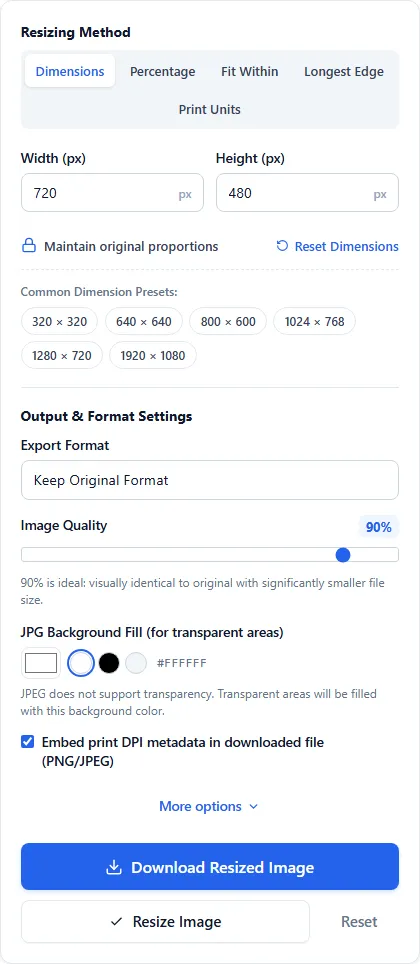
JPEG does not support transparency. Transparent areas will be filled with this background color.
DPI is print metadata: it tells print software how large the picture should appear on paper, and it does not change the pixel dimensions or add any detail. You can resize the picture at the same time if you need to, but changing DPI alone leaves every pixel untouched.
How to Change Image DPI With Correct Dimensions
Changing DPI is a metadata change, not a resize: the picture keeps its exact pixel dimensions, and only the DPI number stored in the file changes. The steps below take under a minute.
Prepare Input Files or Images
Add a JPG, PNG, WebP, GIF or BMP file under 25 MB. DPI is written into PNG and JPEG downloads; WebP has no standard DPI field, so a WebP download carries no DPI value even with DPI writing on. If the destination needs the DPI in the file, export as PNG or JPG.
Choose Settings and Preview Changes
The tool opens with "Write DPI into the downloaded file" already on. Pick the DPI from the selector — 300 is the usual choice for print. The width and height start at the picture's original size, so downloading now changes only the DPI; change the size too if the destination also needs different dimensions.
Download and Verify the Output
Download the file and check it: on Windows, right-click the file, choose Properties, then Details, and look for the horizontal and vertical resolution; on a Mac, open it in Preview and choose Tools, then Show Inspector. The value should match the DPI you picked. The pixel dimensions should be unchanged from the original unless you also resized.
Change Image DPI: Width, Height and Aspect Ratio Settings
DPI and pixel dimensions are independent settings that meet at print time: a 1200 × 800 px picture at 300 DPI prints at 4 × 2.67 inches, and the same pixels at 150 DPI print at 8 × 5.33 inches. The width and height fields on this page change the pixels; the DPI selector changes the print metadata. Use them together when a form asks for both a pixel size and a DPI, or leave the size alone when only the DPI needs to change.
Recommended Default Settings
For a DPI-only change, leave the width and height at the original values, keep the aspect lock on, pick 300 DPI, and export as JPG for photographs or PNG for graphics. Keep the format on "Keep original" so a JPG stays a JPG. Only resize as well if the destination also states pixel dimensions.
Change Image DPI: Examples and Use Cases
DPI changes come up when a form, a print shop or a publisher asks for an image "at 300 DPI". What they usually mean is a file whose stored DPI value is 300 — sometimes also with enough pixels to print at the intended size. Setting the DPI value is instant; supplying the pixels is a separate job, and this page can do both at once.
Real Input and Output Example
Take a 1200 × 800 px JPG with no DPI value stored. Set 300 DPI and download without touching the size: the file is still 1200 × 800 px, but it now declares 300 DPI, so print software treats it as a 4 × 2.67 inch print. The same file downloaded as PNG at 300 DPI stores the value as pixels per metre, which reads back as 299.9994 DPI — the same value within a fraction, because PNG cannot store DPI exactly.
Pixels, Measurement Units, DPI and Output Quality
DPI connects pixels to physical size: px = inches × DPI, px = cm × DPI ÷ 2.54, px = mm × DPI ÷ 25.4. Raising the DPI number alone does not add pixels, so it does not make a picture sharper — a 300 × 200 px image stamped 300 DPI is still a 300 × 200 px image, just one that prints at 1 × 0.67 inches. If a destination needs both a DPI and a print size, the pixels must be there too.
Image Quality, Size and Compatibility Checks
A DPI-only change does not touch the picture data, so quality is identical to the original — except that a JPG export re-compresses the image, so keep quality at 90% or above (or use PNG for a lossless round trip). PNG stores DPI as pixels per metre, so the stored value can differ by a fraction (300 becomes 299.9994); JPEG stores it exactly. WebP has no standard DPI field, so no value is written for WebP downloads.
Common Change Image DPI Problems and Fixes
If the downloaded file shows no DPI value, the format is the cause: switch to PNG or JPG, since WebP cannot carry DPI. If it shows 299.9994 instead of 300, that is the PNG format's pixels-per-metre rounding — the value is correct within a fraction of a DPI, and print software treats it as 300. If a form still rejects the file, it may be checking pixel dimensions rather than DPI: check what it actually requires.
Troubleshooting Upload, Preview or Export Issues
A file that will not load is usually unsupported or corrupt; the tool names it in the error message. If the DPI checkbox is off, no DPI value is written — it is on by default on this page, but check it before downloading. If a download does not start, allow downloads from this site in your browser settings.
Related Tools and Next Steps
Merge Images, Image Resizer, Resize Image in Cm, Reduce Image Size in KB.
Confirm whether the destination reads DPI metadata
Change Image DPI is useful when the downstream application reads print-resolution metadata. A label on a website may ignore this field and use the actual pixel dimensions instead. Use Check Image DPI to inspect the exported file.
Frequently Asked Questions About Change Image DPI
Mobile Support, File Privacy and Download Options
This page works in any modern mobile or desktop browser. Your images are processed locally and never uploaded, and downloads save straight to your device.
Does changing DPI change the image size?
No. DPI is metadata about print size: it changes how large the picture prints, not how many pixels it has. A 1200 × 800 px image stays 1200 × 800 px whatever DPI you stamp on it — at 300 DPI it prints at 4 × 2.67 inches, at 150 DPI at 8 × 5.33 inches.
Does raising the DPI improve image quality?
No. Quality comes from the pixels, and changing DPI does not add any. A small image stamped 300 DPI is still a small image. If a print needs more detail, you need more pixels — either from a larger original or, with softer results, by enlarging.
Which formats keep the DPI value?
PNG and JPEG. PNG stores DPI as pixels per metre (so 300 reads back as 299.9994, which is the same value within a fraction), and JPEG stores it exactly. WebP has no standard DPI field, so WebP downloads carry no DPI value.
How do I check the DPI of a downloaded image?
On Windows, right-click the file, choose Properties, then Details, and look for the horizontal and vertical resolution. On a Mac, open the file in Preview and choose Tools, then Show Inspector. Both show the DPI the file declares.
Change image DPI for print without guessing the pixels
The density changes the print-size interpretation. A 1,200-pixel image at 300 DPI corresponds to four inches, while the same pixels at 150 DPI correspond to eight inches. If the receiving form checks actual pixel dimensions, satisfy that requirement separately.
Adobe explains how print density relates to physical size.