Resize Image to 100KB – Compress Photos for Uploads
To resize an image to 100KB, first check the allowed format and minimum width or height.
Drop images here, paste from clipboard, or choose files
Supports JPG, PNG, WebP, GIF, and BMP • Max 25 MB per file
Tip: You can also copy any picture to your clipboard and press Ctrl+V to paste
Reduce file size while keeping dimensions and pixel quality. Savings vary by image, and optimization may remove metadata.
Color optimization keeps the original dimensions. Colors and transparency can change. Choose Keep original pixels for pixel-for-pixel output.
The tool adjusts quality automatically to fit the size limit.
1 KB is 1,024 bytes and 1 MB is 1,048,576 bytes here.
All Processed Images
Files download separately in the displayed order.Use the 100 KB target and inspect the saved file. If the smallest result is still over the limit, try an allowed JPEG output or reduce the dimensions only if the form permits it.
How to Compress Image to 100KB Without Unnecessary Quality Loss
A 100 KB target is one of the most common upload limits for job portals, college applications and government forms. The tool on this page is preset to 100 KB: add your photo and it finds the highest quality that fits under the limit.
Prepare Input Files or Images
Use the clearest original you have — a sharp, well-lit photo compresses to 100 KB far better than a blurry one. JPG, PNG, WebP, GIF and BMP files up to 25 MB are accepted. If your photo is a scan or a screenshot with text, check the preview carefully: small text is the first thing to suffer at 100 KB.
Choose Settings and Preview Changes
The target is already set to 100 KB, so you only need to add your photo. If the preview looks too soft, try the 200 KB page when your form allows it — or switch to quality mode here and pick a quality level, then check the resulting size.
Download and Verify the Output
Download the result and check its size in your file manager before uploading it to a form. The size shown in the result is the size of the downloaded file, so there should be no surprise at upload time.
Compress Image to 100KB: Target File Size and Quality Settings
The 100 KB preset uses a ceiling of 102,400 bytes. JPEG and WebP try quality settings first, then may reduce dimensions. PNG uses dimension changes because the quality slider does not apply to PNG.
Recommended Default Settings
Choose a format the recipient accepts. JPEG suits many photos. Choose PNG or WebP if you need transparency and the recipient allows it. Check the actual output bytes and dimensions.
100 KB Photo Size: Examples and When to Use It
Use this preset when the receiver sets a 100 KB limit. Check any separate dimension and file-type requirements before saving.
Real Input and Output Example
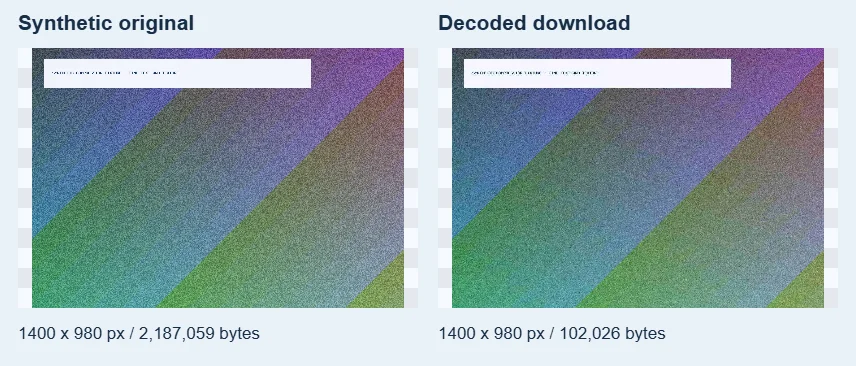
The synthetic source shown below was 2,187,059 bytes. The saved JPEG was 102,026 bytes and retained its 1,400 by 980 pixel dimensions.
Supported Formats, Target KB and Image Quality Limits
The tool accepts JPG, PNG, WebP, GIF and BMP files and exports JPG, PNG or WebP. At a 100 KB target, JPEG and WebP are the realistic choices — PNG's lossless encoding almost never reaches 100 KB for a photo.
Image Quality, Size and Compatibility Checks
Before uploading, open the downloaded file and check that faces and text are still clear at the size the form will show them. If the tool reports that 100 KB could not be reached, it shows the smallest size it achieved and what it changed; in that case, cropping the photo or starting from a smaller original are the honest fixes — no setting can squeeze detail that is not there into fewer bytes.
Common Compress Image to 100KB Problems and Fixes
The most common problem is a photo that will not fit under 100 KB even at the lowest quality. That happens with very large or very detailed photos, and the fix is to let the tool reduce the dimensions — or to crop the photo first.
Troubleshooting Upload, Preview or Export Issues
If the preview looks blurry, the photo's detail needs more than 100 KB — check whether your form accepts 200 KB instead. If a PNG will not reach the target, switch to JPEG or WebP output. Files over 25 MB, damaged files and unsupported types are rejected with a message naming the file.
Frequently Asked Questions About Compress Image to 100KB
How do I compress an image to exactly 100KB?
The preset attempts to meet its 102,400-byte ceiling. If the encoder cannot meet the cap, the result reports the smallest version it reached. Verify the downloaded file against the receiver?s byte count.
Will my photo still look good at 100KB?
Readability depends on the source, crop and display size. Examine fine details after exporting.
What if my photo cannot reach 100KB?
The tool lowers quality first, then reduces dimensions step by step. If even the smallest version is over 100 KB, it shows the best size it reached and explains why, so you can crop the photo or start from a smaller original instead of uploading a file that will be rejected.
Should I use JPG or PNG for a 100KB photo?
JPG for photographs — it reaches 100 KB far more easily. PNG is lossless and rarely gets that small. Use WebP if you need to keep transparency at a small size.
Is my photo uploaded to a server?
No. The compression runs entirely in your browser; nothing is uploaded or stored, and your photo disappears when you leave the page.
Check the 100 KB file before submitting
Open the saved result in your operating system and check both its file size and its dimensions. An image can be under 100 KB and still fail a form’s minimum width or height. Use the pixel resizer for dimensions and return here to check file size.
Related Tools and Next Steps
- Reduce Image Size in KB
- Compress Image to 50KB
- Compress Image to 200KB
- Compress Image
- Resize Image
- Merge Images — the homepage tool
Set the dimensions before trying the 100 KB preset
To resize image to 100KB for an upload, first read the allowed JPEG or PNG formats and any minimum width or height. If the image must stay sharp, reduce empty margins and only then lower the quality. Verify the downloaded byte count since the preview uses the tool's current settings.
MDN explains where browser encoders accept a quality value.
Resize Image to 100KB for an upload with a byte limit
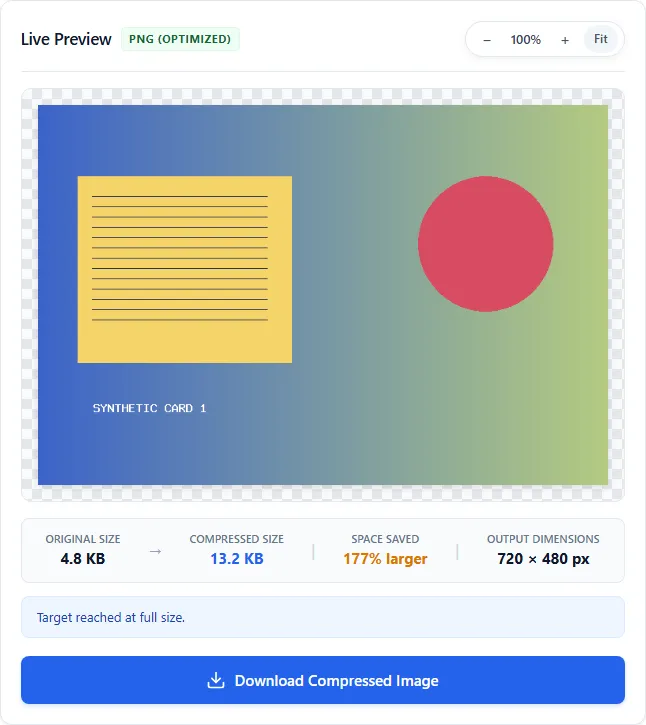
The example uses the 100 KB preset on a synthetic source with fine patterns. Compare the reported compressed size with the limit. Open the saved image and check small details separately, since the byte count cannot tell you which details remain readable.

Resize image to 100KB while keeping the required pixel size
The synthetic test uses JPEG output at the preset cap. Compare the blue lines and small lettering between the two versions, then check the actual bytes. For a website using 100,000 bytes as its limit, enter a smaller target and verify the file properties after downloading.