
Image to Word Converter – Extract Photo Text to DOCX
Turn a photo or a scan into an editable Word document — a JPG photo of a page, a screenshot, or a scanned document — in seconds.
Drop an image here, paste it, or choose a file
JPG, PNG, WebP, GIF and BMP, under 25 MB. Printed English text reads best; handwriting is not supported. Your image never leaves this browser — nothing is uploaded.
Reading takes a few seconds the first time: the OCR engine loads in your browser (about 5 MB of English language data, cached afterwards). The image itself is never uploaded.
The Word file contains the extracted text as editable paragraphs — not the image itself. OCR is not perfect: check the text before you use it, especially numbers, names and punctuation.
The text is recognised in your browser and saved as a real .docx file you can open and edit in Word, Google Docs or LibreOffice. Nothing is uploaded.
How to Convert an Image to Word Online
Converting an image to Word takes three quick steps: add your image, press “Extract text and make Word file”, and download the .docx. There is nothing to install and no account to create, and the tool works the same way on a phone as on a computer.
Prepare Input Files or Images
Click “Choose an image” to pick a file from your device, drag it onto the drop area, or copy an image and paste it straight into the page. JPG, PNG, WebP, GIF and BMP files are accepted, and each file must be under 25 MB. A straight, sharp scan of printed English text reads best — a tilted photo, faint print or low-resolution screenshot reads worst.
Choose Settings and Preview Changes
There are no settings to choose: the tool reads printed English text. The first run takes a few seconds while the OCR engine loads in your browser (about 5 MB of English language data, cached afterwards). The recognised text appears in the box below the image — you can edit it there before you download, so a word the engine got wrong never has to reach the Word file.
Download and Verify the Output
Click “Download as .docx” to save the Word file. Open it in Word, Google Docs or LibreOffice: the text is there as editable paragraphs, not as a picture of the page. Always read the text in the box before you download — OCR is not perfect, and numbers, names and punctuation are the first things it gets wrong.
Image to Word: What You Get in the .docx File
The download is a real Word document, built in your browser with no server and no extra library: the extracted text as editable paragraphs, one paragraph per block of text, with blank lines between paragraphs kept as paragraph breaks. The file opens in Word, Google Docs and LibreOffice. What it does not contain is the image itself — this tool turns pictures of words into editable words; it does not embed the photo in the document.
Recommended Default Settings
For the best result, start from the sharpest, straightest version of the image you have. If a photo reads badly, try a flat scan of the same page instead — and crop the image to the text first with the crop tool, so the OCR engine spends its effort on the words and not on the margins.
Image to Word: Examples and When to Use It
People turn images into Word files for everyday jobs: getting the text of a photographed page into a document they can edit, instead of retyping it; turning a scanned form into editable text; or pulling the words out of a screenshot to quote them. A JPG photo of a printed page is the most common input, and it works exactly the same as any other image format here.
Real Input and Output Example
Take a 1200 x 800 px JPG photo of a printed paragraph. The tool reads the words in reading order and saves them as a .docx file — typically every word, with an average confidence above 90% for a clean print. Open the file in Word and the text is there as paragraphs you can edit, copy and reformat like any document you typed yourself.
Supported Formats, File Sizes and Browser Limits
The tool accepts JPG, PNG, WebP, GIF and BMP uploads and exports a .docx Word document. Individual files over 25 MB are rejected, and images over 8,192 pixels on a side are not supported. Very large images are read at their full size, which is slower — cropping to the text first is faster and usually more accurate.
Image Quality, Size and Compatibility Checks
OCR accuracy depends on the image, not on the tool’s settings: sharp, high-contrast, straight text reads well, and faint, tilted or blurry text reads badly. A screenshot at 100% zoom reads better than a photo of the same screen taken at an angle. If the result is mostly wrong, the problem is almost always the image — try a sharper, straighter version.
Common Image to Word Problems and Fixes
Most problems come from the source image. Text that comes out garbled is usually faint, tilted, low-resolution or photographed at an angle — re-scan it flat and straight. Words that come out joined together usually sit too close in a low-resolution image; a larger, sharper version separates them. Handwriting that comes out as nonsense is expected: this tool reads printed text only.
Troubleshooting Upload, Preview or Export Issues
A file that refuses to load is usually an unsupported type or a damaged file — the tool names the file in its error message. If the first run seems slow, the OCR engine is still loading (about 5 MB, once, then cached). If the download does not start, check that your browser is not blocking downloads from this site, then try again.
Related Tools and Next Steps
Image to Text, Word to PDF, Image Converter, PDF to JPG.
Frequently Asked Questions About Image to Word
Mobile Support, File Privacy and Download Options
The converter works in any modern mobile or desktop browser with JavaScript enabled: tap “Choose an image” to pick a photo from your phone, or drag a file in on a computer. Your images are processed locally and never uploaded, and they disappear when you close or refresh the page.
How do I turn a JPG into a Word document?
Add the JPG photo, press “Extract text and make Word file”, and download the .docx. The text is recognised in your browser with Tesseract.js OCR and saved as editable paragraphs in a real Word file — JPG, PNG, WebP, GIF and BMP images all work the same way.
Does the Word file contain my image?
No — it contains the extracted text as editable paragraphs, not the picture itself. If you need the photo in the document, insert it in Word after downloading. This tool turns pictures of words into words you can edit.
Does it read handwriting?
No — it reads printed text only. Handwritten words are recognised unreliably or not at all. For handwriting, you need a tool built for it; this one will not pretend to read what it cannot.
Which languages are supported?
English only. Only the English language data is shipped with the tool, so text in other scripts is not recognised. If you need another language, say so — the language data is a separate download and would need to be added.
Are my images uploaded to a server?
No. OCR and the Word file are built entirely in your browser. Your images are never sent to a server, never stored, and disappear when you close or refresh the page.
Review line breaks before downloading the text as Word
An image to Word workflow recognizes visible text, so columns and partly cut off words may need correction. Read the pasted or downloaded result alongside the source, and add meaningful headings in Word where needed.
Proofread the extracted text before opening it in Word
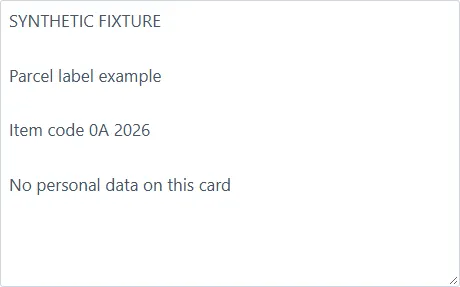
Look closely at amounts, dates, and codes when using image to Word conversion. Characters such as O and 0 can be confused in a low-contrast scan. Save the original next to the Word file so the recipient can check rows or columns that were read out of order.
Microsoft explains how scan quality affects recognition and why extracted text needs proofreading.