Pixelate Image Online – Add Mosaic Blocks to Your Photos
Pixelate an image online in seconds — turn a photo into chunky mosaic blocks to hide a face or a detail, or switch to Pixel art mode for the flat, retro look of classic video games.
Drop an image here, paste it, or choose a file
JPG, PNG, WebP, GIF and BMP, up to 25 MB. Your image never leaves this browser — nothing is uploaded.
Live Preview
No regions yet — drag on the preview above to draw one.
Uncheck to keep descriptive tags from a JPEG when saving as JPEG. Location data and embedded previews are always removed.
Everything runs in your browser, so your photos are never uploaded. Set the block size, check the preview, and download the result.
How to Pixelate Image With Correct Dimensions
Pixelating an image takes three quick steps: add your picture, set the block size, and download. The pixel dimensions never change — a 1200 × 800 px photo stays 1200 × 800 px; only the picture inside it becomes blocks.
Prepare Input Files or Images
Click "Choose an image" to pick a file from your device, drag it onto the drop area, or copy an image and paste it straight into the page. JPG, PNG, WebP, GIF and BMP files are accepted, and each file must be under 25 MB. Pixelation works from any photo, but it reads best on pictures with clear shapes and strong colours.
Choose Settings and Preview Changes
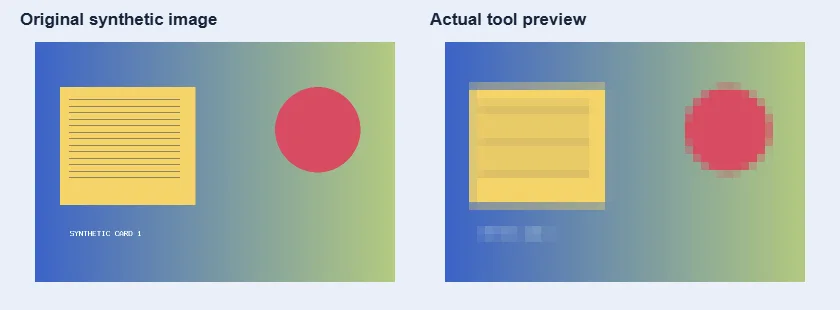
The block size slider sets how big each mosaic square is, in pixels. Small blocks (4–8 px) soften detail; medium blocks (16–32 px) hide faces and text; large blocks (50 px and above) turn the whole photo into an abstract pattern. Pixel art mode adds a colour-levels control that flattens the palette to a few shades, which is what gives the retro game look.
Download and Verify the Output
Click "Download pixelated image" to save the result. The download name starts with "pixelated-" (or "pixel-art-" in Pixel art mode) and your original file is never changed. Open the downloaded file and check the block size at full size: blocks that look right in the small preview can feel too fine or too coarse on the full image.
Pixelate Image: Width, Height and Aspect Ratio Settings
Pixelation never changes the width, height or aspect ratio of the image — it only changes how the picture is drawn inside those dimensions. A 1200 × 800 px photo with 16 px blocks is still 1200 × 800 px, made of 75 × 50 blocks. Because the dimensions stay the same, a pixelated image drops straight back into any layout, post or document the original fitted.
Recommended Default Settings
For hiding a face or a number plate, use blocks of 16–24 px on a typical phone photo — big enough to destroy the detail, small enough that the picture still reads as a photo. For pixel art, start with 24 px blocks and 4 colour levels, then raise the block size for a chunkier retro feel. If the result still shows too much detail, double the block size rather than nudging it.
Pixelate Image: Examples and Use Cases
People pixelate images for two reasons: privacy and style. The privacy job is the classic mosaic over a face, a number plate, a username or an address in a screenshot. The style job is pixel art — turning a photo into a retro game sprite, an avatar, or a poster with flat colours and hard square edges.
Real Input and Output Example
Take a 1200 × 800 px portrait. At 16 px blocks, the face becomes an unreadable mosaic while the pose and the background stay recognisable. Switch to Pixel art mode at 24 px blocks with 4 colour levels and the same portrait becomes a flat, game-like image with a handful of colours — the kind of look that works as an avatar or a sticker.
Pixels, Measurement Units, DPI and Output Quality
Block size is measured in pixels of the original image, so the same setting looks different on different sizes: 16 px blocks on a 4000 px-wide phone photo are much finer, relative to the picture, than 16 px blocks on a 400 px-wide thumbnail. If you are pixelating a very large photo, use a larger block size to get the same visual weight. DPI plays no part here — pixelation is purely a pixel operation.
Image Quality, Size and Compatibility Checks
Pixelation is a one-way change: the downloaded file cannot be un-pixelated, so keep your original if you might need the sharp version later. PNG export keeps the hard block edges perfectly crisp; JPG export at 90% is fine for photos but can soften the very edges of blocks. The output is capped at 8,192 pixels on a side.
Common Pixelate Image Problems and Fixes
The most common surprise is blocks that are too small to hide anything — on a large photo, 8 px blocks barely soften a face. Double the block size until the detail is gone. The opposite problem is blocks so large the picture becomes unrecognisable; halve the size until the shapes come back.
Troubleshooting Upload, Preview or Export Issues
A file that refuses to load is usually an unsupported type or a damaged file — the tool names the file and says what is wrong. If the preview looks unchanged, the block size may be at its minimum (2 px) — drag the slider right and watch the blocks appear. If a download does not start, check that your browser is not blocking downloads from this site, then try again.
Related Tools and Next Steps
Merge Images, Blur Image, Deep Fry Photo, Image Resizer.
Frequently Asked Questions About Pixelate Image
Mobile Support, File Privacy and Download Options
The pixelate tool works in any modern mobile or desktop browser with JavaScript enabled: tap "Choose an image" to pick a photo from your phone, or drag a file in on a computer. Your pictures are processed locally and never uploaded, and they disappear when you close or refresh the page. The download saves straight to your device.
What block size hides a face properly?
On a typical phone photo, 16–24 px blocks make a face unrecognisable. The right size depends on the photo: the larger the image, the larger the blocks need to be for the same effect. Check the result at full size before sharing — if you can still make out eyes or a mouth, double the block size.
What is the difference between pixelate and pixel art?
Pixelate turns the photo into flat-colour blocks but keeps the full range of colours. Pixel art mode does the same blocking with larger blocks and flattens the colours to a few levels (2–8), which gives the limited-palette look of retro video games. Pixelate is for hiding detail; pixel art is for style.
Can a pixelated image be reversed?
No. Pixelation replaces the original pixels with flat blocks, so the detail underneath is gone from the downloaded file — it is not hidden behind a layer. Keep your original file if you might want the sharp version later.
Does pixelating change the image size?
No. The width, height and aspect ratio stay exactly the same — only the picture inside the frame changes. A 1200 × 800 px photo stays 1200 × 800 px, made of mosaic blocks instead of fine detail.
Check whether image pixelation survives downscaling
Pixelate image details using a block size that remains visible in the actual destination. A second resize can smooth the block edges. Check the exported file before posting it and use an opaque replacement for content that should not remain recognizable.
MDN describes smoothing when scaling an image on a canvas