
Image Resizer MM – Size Photos in Millimetres for Print
Resize a photo to an exact size in millimetres for print work and official forms that specify mm dimensions — set the width and height in mm, pick the DPI, and the tool converts to pixels for you.
Drop images here, paste from clipboard, or choose files
Supports JPG, PNG, WebP, GIF, and BMP • Max 25 MB per file
Tip: You can also copy any picture to your clipboard and press Ctrl+V to paste
Live Preview
Uncheck to keep descriptive tags from a JPEG when saving as JPEG. Location data and embedded previews are always removed.
100% preserves original dimensions. 50% halves each dimension; 200% doubles each dimension.
Scale proportionally so the image fits inside these maximum boundaries without stretching or distortion.
Scale the image by its longest dimension. The shorter edge scales proportionally automatically.
Keeps the original dimensions and pixels. Savings depend on the image, and optimization may remove metadata.
JPG and WebP quality settings trade detail for file size. Use File Size Only to preserve the original pixels.
JPEG does not support transparency. Transparent areas will be filled with this background color.
At the default 300 DPI, one millimetre is about 12 pixels, and the conversion formula is shown on the page so you can check the maths. Everything runs in your browser; nothing is uploaded.
How to Resize Images in MM With Correct Dimensions
Millimetre sizing is for precise print work: you state the physical size you want, and the DPI decides how many pixels that takes. The steps below take under a minute.
Prepare Input Files or Images
Add a JPG, PNG, WebP, GIF or BMP file under 25 MB. Check what the destination asks for: a size in mm and, usually, a DPI — 300 DPI is the standard for photo printing. Millimetres are unforgiving of small errors, so double-check the numbers against the form or print specification.
Choose Settings and Preview Changes
The tool opens in mm mode at 300 DPI. Type the width and height in millimetres; with the aspect lock on, one side is enough and the other follows from the picture's proportions. The conversion note shows the formula at your DPI (px = mm × DPI ÷ 25.4), and the file list shows the resulting pixel size for every image.
Download and Verify the Output
Download the file and check its pixel dimensions: at 300 DPI, 35 mm wide should give 413 px. If the destination also needs the DPI recorded in the file, enable "Write DPI into the downloaded file" before downloading — PNG and JPEG downloads will then carry the DPI value.
Resize Images in MM: Width, Height and Aspect Ratio Settings
Width and height accept decimals (for example 35.5 mm), and the aspect lock works in millimetres exactly as it does in pixels: set one side, and the other follows the picture's shape. Changing the DPI changes the pixel result for the same millimetre size — 35 mm is 413 px at 300 DPI but only 207 px at 150 DPI — so set the DPI first, then the size.
Recommended Default Settings
Use 300 DPI for photo prints and official photos unless the destination says otherwise, keep the aspect lock on, and export as JPG for photographs or PNG for graphics. If the form asks for a DPI value in the file itself, enable DPI writing and keep the format on JPG or PNG, since WebP has no standard DPI field.
Photo Resizer In Mm: Examples and When to Use It
Millimetre sizes appear on official forms and in print specifications: passport-style photos are commonly specified as 35 × 45 mm, signatures as small mm rectangles, and print layouts often dimension images in mm. Because a millimetre is small, rounding to whole pixels matters more here than in cm — the tool rounds to the nearest pixel and shows you the exact result before you download.
Real Input and Output Example
A 1200 × 800 px photo set to 35 mm wide at 300 DPI becomes 413 × 276 px (35 × 300 ÷ 25.4 = 413.4, rounded). Set to 35 × 45 mm with the lock off, the same photo becomes exactly 413 × 531 px, stretched to fit the rectangle. Check which the destination wants: a proportional resize, or an exact rectangle.
Pixels, Measurement Units, DPI and Output Quality
The conversion is simple division: one inch is 25.4 mm, so pixels = mm × DPI ÷ 25.4. At 300 DPI each millimetre is about 11.8 pixels; at 150 DPI about 5.9; at 72 DPI about 2.8. Results are rounded to whole pixels, so an mm size may come out one pixel off the exact maths — at these small sizes that rounding is a larger share of the result, which is why the file list shows the exact pixel dimensions.
Image Quality, Size and Compatibility Checks
Shrinking to an mm size keeps quality; enlarging a small picture to a large mm size at high DPI softens it. Check the resulting pixel dimensions before downloading — if they are much larger than the original, the print will be soft. PNG keeps transparency; JPG flattens it onto white. Files over 25 MB are rejected, and output is capped at 8,192 px per side.
Common Resize Images in MM Problems and Fixes
A 35 mm width at 72 DPI needs about 99 pixels. A higher density keeps the same intended physical width with more pixels, if the print software honors the density.
Troubleshooting Upload, Preview or Export Issues
A file that will not load is usually unsupported or corrupt; the tool names it in the error message. If the preview shows a dash, an mm field is empty or zero — enter a value above 0. If the downloaded file does not carry a DPI value, enable "Write DPI into the downloaded file" and use JPG or PNG output.
Related Tools and Next Steps
Merge Images, Image Resizer, Resize Image in Cm, Resize Images in Inches.
Check millimetres before exporting
If an upload form specifies 35 mm, enter 35 in millimetre mode. The same number in centimetre mode asks for a photo ten times wider. Review the resulting pixel dimensions and print density before downloading.
Frequently Asked Questions About Resize Images in MM
Mobile Support, File Privacy and Download Options
This page works in any modern mobile or desktop browser. Your images are processed locally and never uploaded, and downloads save straight to your device.
How many pixels is 35 × 45 mm at 300 DPI?
413 × 531 pixels (35 × 300 ÷ 25.4 = 413.4, 45 × 300 ÷ 25.4 = 531.5, each rounded to a whole pixel). At 150 DPI the same size is 207 × 266 px.
What is the difference between mm and cm sizing?
Only the unit: 10 mm is 1 cm, and the pixel maths is the same (px = mm × DPI ÷ 25.4, or px = cm × DPI ÷ 2.54). Use whichever unit the form or print shop states, and double-check you are in the right mode — 35 mm and 35 cm differ by a factor of ten.
Does the downloaded file remember the mm size?
A file stores pixels, not millimetres — but if you enable "Write DPI into the downloaded file", PNG and JPEG downloads carry the DPI value, so print software can work out the intended mm size from pixels ÷ DPI. WebP has no standard DPI field.
Why is my output one pixel off the size I expected?
Pixel dimensions must be whole numbers, so the tool rounds to the nearest pixel — 413.4 becomes 413, 531.5 becomes 531. At millimetre sizes that rounding is visible in the numbers, but it is less than a tenth of a millimetre on paper.
Avoid a tenfold error in millimetre mode
Use the image resizer mm mode for a request that gives whole millimetres. At 300 pixels per inch, a 35 mm width is about 413 pixels. Entering 35 into centimetre mode would create a width ten times larger.
Adobe explains the pixel count and print-density relationship.
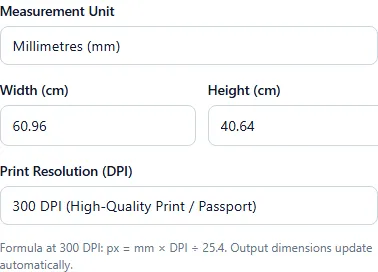
Image resizer mm example for a 50 by 20 mm label
Start from the intended width and height in millimetres. For a wide 50 by 20 mm label at 300 DPI, multiply both values by 300 and divide by 25.4. The result rounds to 591 by 236 pixels. Crop to the 5:2 shape first if any stretch would make the label hard to read.
