
Shipping Label Cropper – Trim and Size Labels for Print
Crop a shipping label out of a full-page scan or photo, straighten it, and download it at print size — 4 x 6 inch or A6.
Drop a shipping label here, paste it, or choose a file
Label image (JPG, PNG, WebP) or a PDF — the first page is used. Under 25 MB. Your label never leaves this browser — nothing is uploaded.
Crop the label
Drag the corners of the box to frame exactly the label — the barcode and address must be fully inside it. Drag inside the box to move it. The box shows exactly what the download will contain.
Works with label images and with PDF labels (the first page is used). Everything runs in your browser; nothing is uploaded.
How to Crop a Shipping Label Online
Cropping a shipping label takes four quick steps: add the label image or PDF, drag the box to frame exactly the label, pick a print size, and download. The box shows exactly what the download will contain — the barcode and address must be fully inside it.
Prepare Input Files or Images
Add a JPG, PNG or WebP image of the label, or a PDF — for a PDF, the first page is rendered and used. Each file must be under 25 MB. A straight, well-lit scan crops best; a tilted phone photo can be straightened with the rotate buttons first. Password-protected PDFs are not supported, and this tool never asks for a password.
Choose Settings and Preview Changes
Drag the corners of the box to frame exactly the label, and drag inside the box to move it. If the label is sideways, use the rotate buttons to turn it upright before you frame it. Pick an output size: “Cropped area, as it is” keeps the exact pixels you framed, while the 4 x 6 inch and A6 options resize the crop to the print size.
Download and Verify the Output
Click “Download cropped label” and check the downloaded file before you print it: the barcode, address and order details must be complete and sharp. A blurry barcode will not scan — keep the JPG quality high (92% is the default) and re-crop from a sharper original if the barcode looks soft.
Shipping Label Cropper: Crop, Rotate and Print Sizes
Most shipping labels are printed at 4 x 6 inches (1200 x 1800 px at 300 DPI) or on A6 paper (1240 x 1748 px at 300 DPI). This tool offers both as output sizes, plus a 4 x 6 inch size at 200 DPI (800 x 1200 px) for older printers. The print sizes resize the crop to fill the label size, so frame the label tightly first — a loose crop stretched to 4 x 6 inches wastes print area and shrinks the barcode.
Recommended Default Settings
For most labels, frame the label tightly, pick “4 x 6 inch label at 300 DPI”, keep JPG format at 92% quality, and print the download at 100% scale (not “fit to page”). If your printer only takes PNG, switch the format — PNG is lossless, so the barcode stays sharp.
Shipping Label Cropper: Examples and When to Use It
People use this page when a label arrives as a full A4 page with the label in one corner, or as a phone photo of a printed label that needs straightening before it is reprinted. A label PDF with two labels on one page is cropped one label at a time — frame the first label, download it, then frame the second and download that too.
Real Input and Output Example
Take an A4 PDF page with a 4 x 6 inch label in the top half. The tool renders the first page; you drag the box around the label only, pick “4 x 6 inch label at 300 DPI”, and download a 1200 x 1800 px JPG of the label alone — ready to print at 100% scale with no white A4 margins around it.
Supported Formats, File Sizes and Browser Limits
The tool accepts JPG, PNG and WebP label images, plus PDF files (first page only), and exports to JPG or PNG. Individual files over 25 MB are rejected, and images over 8,192 pixels on a side are not supported. PDF text is rendered with fallback fonts: the label may look slightly different from the original font, but the barcode and address are rendered from the PDF itself and stay readable.
Image Quality, Size and Compatibility Checks
Cropping never enlarges the label beyond what you framed: if the source is low-resolution, the print size will be soft — start from the sharpest original you have. A barcode that looks soft in the preview will not scan when printed; re-scan at a higher resolution instead of raising the quality slider, which cannot add detail that was never there.
Common Shipping Label Problems and Fixes
The most common problem is a cut-off barcode: the crop box was framed too tightly, or the label was rotated after framing. Frame the box with a small margin around the label, and rotate before you frame, not after. A label that prints at the wrong size was usually printed with “fit to page” scaling — print the download at 100% scale instead.
Troubleshooting Upload, Preview or Export Issues
A PDF that refuses to load is usually password-protected or damaged — this tool never asks for a password, so use an unprotected copy. If the preview shows a grey box instead of the label, the file is still loading or failed to decode; try the file again. If the download does not start, allow downloads from this site in your browser and try again.
Related Tools and Next Steps
PDF to JPG, Crop and Resize Image, Image Resizer, All Image Tools.
Frequently Asked Questions About Shipping Label Cropper
Mobile Support, File Privacy and Download Options
This page works in any modern mobile or desktop browser. Your labels are processed locally and never leave your device, and the download saves straight to your phone or computer.
Can I crop a label from a PDF?
Yes. Add the PDF and the tool renders the first page, then you frame the label with the crop box and download it. Password-protected PDFs are not supported, and only the first page is used — a PDF with two labels on one page is cropped one label at a time.
What print size should I choose?
Most shipping labels print at 4 x 6 inches (1200 x 1800 px at 300 DPI). A6 (1240 x 1748 px at 300 DPI) suits A6 label paper. Pick the size that matches your label paper, and print the download at 100% scale, not “fit to page”.
Will the barcode still scan after cropping?
Yes, as long as the barcode is fully inside the crop box and sharp. Keep the JPG quality high (92% is the default) and check the downloaded label before you print it. A barcode that looks soft in the preview will not scan — re-scan at a higher resolution instead.
Does the tool read or change my label?
No. It only crops the image — it never reads the address, barcode or order details, and it never changes them. The download is a cropped copy of the label you uploaded.
Are my labels uploaded to a server?
No. Cropping happens entirely in your browser. Your labels are never sent to a server, never stored, and disappear when you close or refresh the page.
Avoid clipping the quiet space around a barcode
In the shipping label cropper, retain part of the blank space on every side of the barcode. Print a sample at actual size and verify the address block and code are complete before printing a batch.
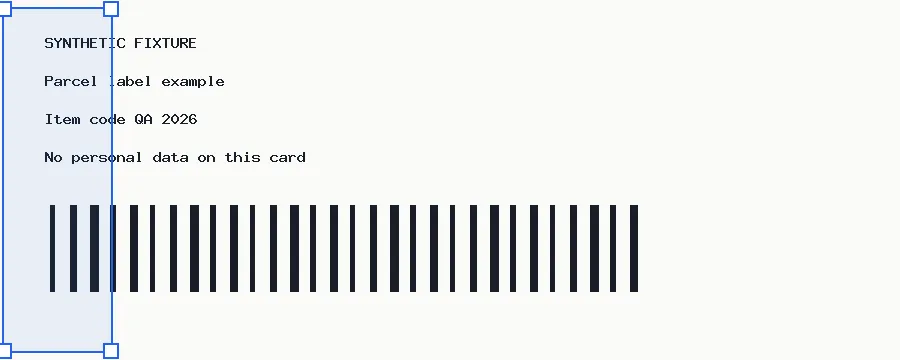
Leave the light margin at the sides of the barcode
When positioning the crop, keep the clear space on both sides of the barcode. Cutting the margin to fill the print area can make a printed label harder to scan. Inspect the left and right edges of the saved crop and follow the carrier's label instructions.
GS1 specifies clear areas around barcodes on logistics labels.
Rotate a sideways label before setting the print crop
A label scan can arrive in either orientation. Use the rotate control to make the text upright, then position the crop so it includes the address and the blank space around the code. The comparison demonstrates a quarter turn on synthetic artwork.

Check which page of a PDF contains the label
If the shipping label is on page two or later, extract that page before loading it. The tool starts with the first page of the PDF. This two-page sample shows the parcel label on page one while the separate packing note stays off the crop preview.
