Text to Handwriting – Style and Export a Digital Page
Turn typed text into handwriting-style pages: type or paste your words, pick a handwriting font, choose an ink color and ruled or plain paper, and download the result as PNG images or a single A4 PDF.
Preview
Type some text above to see it as handwriting.
Everything runs in your browser, so your text is never uploaded. Long text flows onto extra pages automatically.
How to Use Text to Handwriting Online
Turning text into handwriting takes three quick steps: type your text, style it, and download it. There is nothing to install and no account to create, and the tool works the same way on a phone as on a computer.
Prepare Input Files or Images
No file is needed — just type or paste your text into the box, up to 10,000 characters. Line breaks in your text become new lines on the page, so paste multi-paragraph text as it is. A short sample is already in the box so you can see the result immediately; clear it and type your own.
Choose Settings and Preview Changes
Pick a handwriting font — Caveat for casual handwriting, Kalam for neat handwritten print, or system cursive to use your device's own font — then an ink color (dark blue, black, blue, red, green, or any custom color), paper (plain white, ruled lines, or ruled lines with a red margin), and a font size from 28 to 72 px. The preview updates as you type and as you change settings, showing every page.
Download and Verify the Output
Click "Download PNG" to save one image per page, or "Download PDF" to save all pages in a single A4 PDF file. Each page is 1240 × 1754 px (A4 at 150 DPI), which prints cleanly on an A4 sheet. Check the download: the pages should match the preview exactly, including the ruled lines and the margin.
Text to Handwriting: Editing Controls and Preview Options
The tool has five controls: the text itself, the font, bold ink, the ink color, the paper, and the font size. The preview shows the real pages — the same canvases that are downloaded — so what you see is what you get. Pages are numbered, and the status line reports the page count and the page size.
Recommended Default Settings
For most jobs, keep the defaults: Caveat at 44 px, dark blue ink, ruled paper. That combination reads as natural notebook handwriting. Use Kalam when the text must be easy to read at a glance (worksheets, instructions), plain paper for quotes and mock-ups, and a smaller font size (32–36 px) when you need to fit more text per page.
Text to Handwriting: Examples and Use Cases
People turn text into handwriting for everyday jobs: making a worksheet look handwritten, creating a quote image for a post, mocking up a notebook page for a design, or preparing notes that read more personally than typed text. A teacher pastes a paragraph and downloads a ruled PDF worksheet; a designer types a headline and downloads a PNG to place in a mock-up.
Real Input and Output Example
Type three short paragraphs (about 400 characters) in Caveat at 44 px on ruled paper. The result is one A4 page: the text sits on the ruled lines in dark blue, with the red margin line on the left if that paper style is chosen. The same text at 72 px would flow onto two pages, because larger writing means fewer lines per page. Downloading as PDF gives one file with both pages; downloading as PNG gives two image files.
Supported Formats, File Sizes and Browser Limits
The tool takes text input (up to 10,000 characters) and exports PNG images (one per page) or a single multi-page PDF (A4, 595.28 × 841.89 points, JPEG images at 92% quality inside). Pages are A4 at 150 DPI — 1240 × 1754 px — which prints sharply on a home printer. The fonts are open-licensed (SIL OFL) and served from this site, so the result looks the same on every device; the system-cursive option is the only one that varies by device.
Image Quality, Size and Compatibility Checks
The PNG export is lossless, so every stroke is kept exactly; the PDF embeds each page as a JPEG at 92% quality, which is visually identical for handwriting. If a page looks wrong, check the preview first — the download is generated from the same pages, so a preview problem and a download problem have the same cause. Very long text (near 10,000 characters) produces many pages and can be slow on low-memory phones; split it into parts if the page feels sluggish.
Common Text to Handwriting Problems and Fixes
Most problems come from the text or the browser. If the preview is empty, the text box is empty — type something and the pages appear. If a font looks like plain text instead of handwriting, the vendored font failed to load and the system fallback is in use; the tool says so under the font selector, and switching fonts or reloading the page usually fixes it. If a download does not start, check that your browser is not blocking downloads from this site, then try again — PNG downloads are multiple files, and some browsers ask permission first.
Troubleshooting Upload, Preview or Export Issues
Text that runs past the bottom of a page flows onto the next page automatically — nothing is cut off. If the ruled lines do not line up with the text, that is a rendering bug worth reporting, because the lines are drawn from the same measurements as the text. One honest limit: this is a font, not a pen — every letter is identical each time it appears, so it will not fool anyone into thinking a person wrote it by hand, and it must not be used to imitate someone's handwriting.
Related Tools and Next Steps
Images to PDF, Image Resizer, All Image Tools.
Frequently Asked Questions About Text to Handwriting
Mobile Support, File Privacy and Download Options
This page works in any modern mobile or desktop browser with JavaScript enabled: type or paste text on your phone, or on a computer. Your text is processed locally and never uploaded, and it disappears when you close or refresh the page. PNG pages and the PDF download straight to your device.
How do I turn typed text into handwriting?
Type or paste your text, pick a handwriting font (Caveat or Kalam), choose an ink color and paper style, and download the result as PNG images or a single multi-page PDF. Long text flows onto extra A4 pages automatically.
Which handwriting fonts are available?
Caveat (casual handwriting) and Kalam (neat handwritten print), both open-licensed fonts served from this site — plus a system-cursive option that uses whatever handwriting-style font your device has. The vendored fonts look the same on every device; the system option varies.
Can I download the handwriting as a PDF?
Yes. The PDF download puts all pages into one A4 PDF file, built entirely in your browser. The PNG download saves one image per page instead — useful when you need a single page as a picture.
Is this real handwriting or a font?
It is a handwriting-style font rendered onto a page — the letterforms come from the Caveat or Kalam typefaces, not from a pen. It looks handwritten, but it is type: every "a" is the same "a". It suits notes, worksheets, quotes and mock-ups, not forging signatures — do not use it to imitate someone's handwriting.
Is my text uploaded to a server?
No. The pages are rendered entirely in your browser. Your text is never sent to a server, never stored, and disappears when you close or refresh the page.
Check the last line before saving a handwriting page
When converting text to handwriting, check the page break after increasing the font size. A long word or a series of blank lines can make an additional page. Choose the PDF export for more than one page and inspect the first and last pages separately.
Keep editable text alongside a handwriting image
Save a plain text copy when you turn instructions into a handwritten-looking graphic. When publishing the graphic online, include the same instructions as readable text so visitors can resize, select or listen to them.
W3C explains when to use selectable text and how images of text affect readability.
Check page two if your handwriting spills over
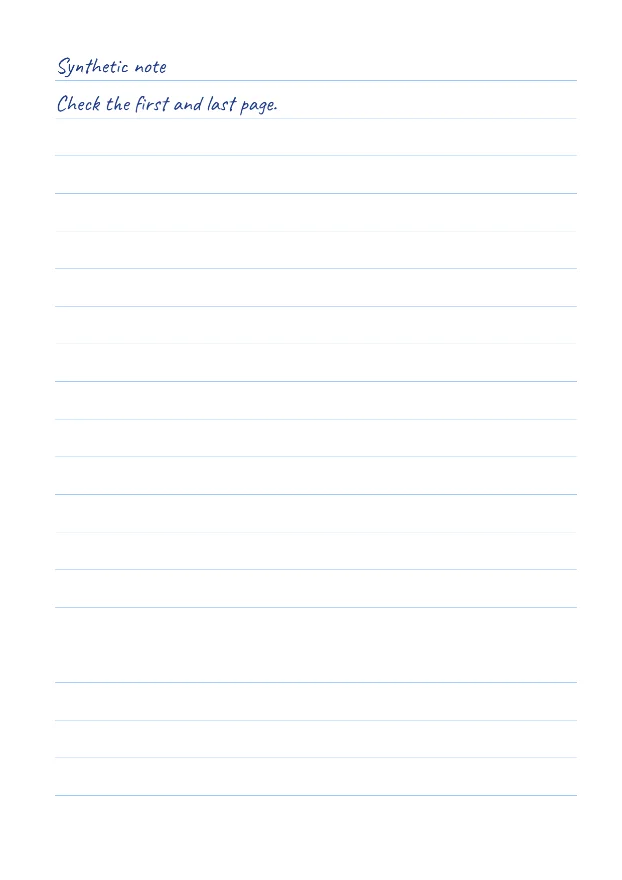
When the preview creates another page, check whether that page starts with an incomplete instruction or heading. Move the line break or reduce the type size if the separation makes the result hard to follow. The sample shows the second page of a synthetic note.