Check Image DPI Online – Read a Photo's Print Resolution
DPI (dots per inch) is a small number stored inside an image file that tells a printer how big to print it.
Drop an image here, or choose a file
JPG, PNG, WebP, GIF and BMP. Your image never leaves this browser — nothing is uploaded.
Upload a JPG, PNG, WebP, GIF or BMP image to read the DPI it actually stores — or to find out honestly that it stores none, which is common. Everything runs in your browser, so your images are never uploaded.
How to Check Image DPI With Correct Dimensions
Checking DPI takes two quick steps: add your picture and read the result. There is nothing to install and no account to create, and the tool works the same way on a phone as on a computer.
Prepare Input Files or Images
Click "Choose an image" to pick a file from your device, or drag it onto the drop area. JPG, PNG, WebP, GIF and BMP files are accepted, and each file must be under 25 MB. The tool reads the file's own DPI record — the PNG pHYs chunk, the JPEG JFIF density segment, or the EXIF resolution — rather than guessing from the pixel size.
Choose Settings and Preview Changes
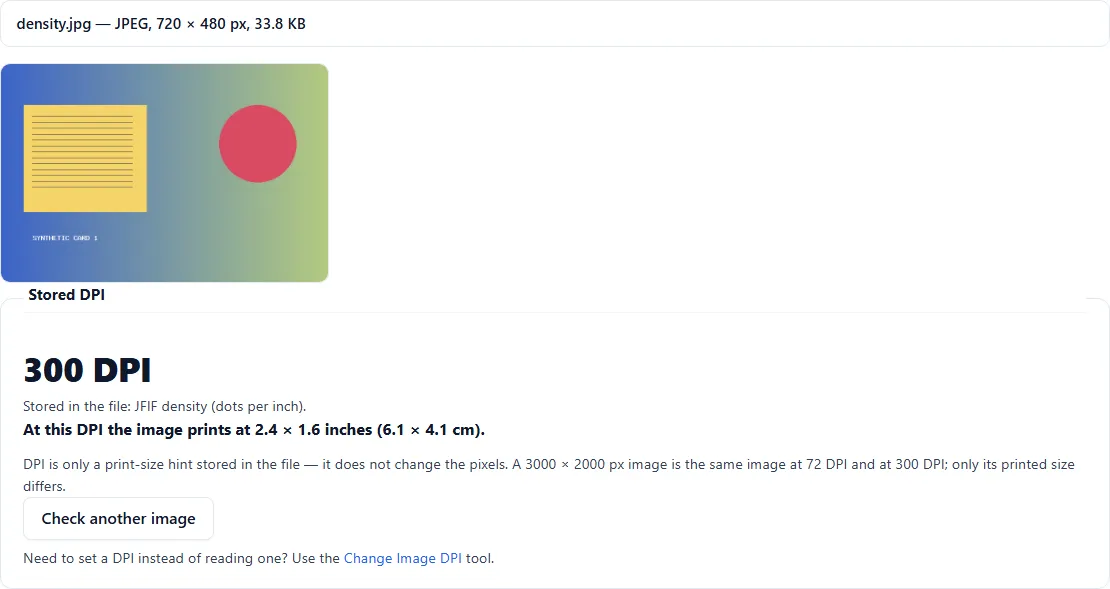
There are no settings to choose: DPI is read from the file, not set by the reader. The result shows the stored DPI value, where in the file it came from, and the size the image would print at that DPI in inches and centimetres. If the file stores no DPI, the tool says so plainly instead of inventing a number — many images, including most screenshots and WebP files, carry no DPI at all.
Download and Verify the Output
There is nothing to download: this is a read-only check, and your file is never changed. To verify the result yourself, divide the pixel width by the DPI — that is the print width in inches. A 3000 px wide image at 300 DPI prints 10 inches wide; the same image at 72 DPI prints about 41.7 inches wide, because DPI only changes the print size, never the pixels.
Check Image DPI: Width, Height and Aspect Ratio Settings
DPI connects pixels to physical size: print width in inches equals pixel width divided by DPI. The aspect ratio is independent of DPI — a 3000 × 2000 px image is always 3:2, whether it stores 72, 150 or 300 DPI. What changes is the printed size: at 300 DPI it prints 10 × 6.7 inches, at 150 DPI it prints 20 × 13.3 inches, and at 72 DPI it prints about 41.7 × 27.8 inches. Screens ignore DPI entirely and show pixels one-for-one (scaled to the display), which is why the same file looks identical on screen whatever DPI it stores.
Recommended Default Settings
For print work, 300 DPI is the usual target for photographs and 150 DPI is acceptable for large prints viewed from a distance. For screen use, DPI is irrelevant — pixel dimensions are what matter. If a form asks for a 300 DPI image, it is usually asking for enough pixels to print sharply at a given size; check the pixel dimensions too, because a tiny image stamped "300 DPI" is still a tiny image.
Check Image DPI: Examples and Use Cases
People check DPI before printing, before submitting photos to forms that specify a DPI, and when a print comes out the wrong size. A photo that prints far too large was usually saved at 72 DPI; a photo a form rejects for "low DPI" may simply store no DPI value at all, even though its pixels are fine. In both cases the fix is to set the DPI — the pixels do not need to change.
Real Input and Output Example
Take a 2480 × 3508 px PNG (an A4 page scanned at 300 DPI). This tool reads its pHYs chunk and reports 300 DPI, with a print size of 8.27 × 11.69 inches (21 × 29.7 cm) — exactly A4. The same pixels saved at 72 DPI would report a print size of 34.4 × 48.7 inches: same image, very different print.
Pixels, Measurement Units, DPI and Output Quality
PNG stores DPI as pixels per metre in its pHYs chunk, so a stored value of 300 DPI reads back as 299.9994 or similar — that rounding is a property of the format, not an error, and this tool rounds it for display. JPEG stores DPI exactly in its JFIF density segment (dots per inch, or dots per centimetre converted here to DPI). EXIF resolution is used as a fallback when JFIF carries none. WebP has no standard DPI field, and GIF and BMP carry no DPI value, so those formats always report "no DPI stored" — honestly, because there is nothing to read.
Image Quality, Size and Compatibility Checks
Changing DPI never changes image quality: it only changes the print-size hint. A 72 DPI photo and a 300 DPI photo with the same pixels are the same photo. What decides print quality is pixel count — a 300 DPI print needs 300 pixels per inch of printed size. If your image has too few pixels for the print size you want, no DPI setting can fix it; you need a higher-resolution source.
Common Check Image DPI Problems and Fixes
The most common surprise is "no DPI stored": the file genuinely carries no DPI record, which is normal for screenshots, web downloads and WebP files. It is not an error, and it does not mean the image is low quality. A file that refuses to load is usually an unsupported type or a damaged file — the tool names the file and says what is wrong. A DPI reading that disagrees with another tool usually comes from the source: this tool prefers JFIF density for JPEGs and falls back to EXIF resolution, while other tools may read only one of them.
Troubleshooting Upload, Preview or Export Issues
If the tool reports a DPI you did not expect, check where it came from — the source line under the result names the exact record (JFIF, EXIF or pHYs). If your image needs a different DPI, use the Change Image DPI tool, which writes the value into a new copy of the file. If a PNG reports 299.9994 instead of 300, that is the format's pixels-per-metre rounding, and every correct reader reports the same thing.
Related Tools and Next Steps
Change Image DPI, Remove Metadata, Image Resizer, All Image Tools.
Read DPI together with pixel dimensions
A 1,200-pixel-wide image tagged at 300 DPI corresponds to four inches at that density. The same file tagged at 150 DPI corresponds to eight inches. It still contains the same number of pixels. Adobe explains the relationship between dimensions and resolution.
Frequently Asked Questions About Check Image DPI
Mobile Support, File Privacy and Download Options
This page works in any modern mobile or desktop browser with JavaScript enabled: tap "Choose an image" to pick a photo from your phone, or drag a file in on a computer. Your pictures are processed locally and never uploaded, and they disappear when you close or refresh the page.
What does DPI mean for an image?
DPI (dots per inch) is a number stored in an image file that tells a printer how large to print it: print width in inches equals pixel width divided by DPI. It does not change the pixels — a 3000 px wide image is the same image at 72 DPI and at 300 DPI; only its printed size differs. Screens ignore DPI entirely.
Why does my image have no DPI stored?
Many images simply carry no DPI record: screenshots, web downloads and most WebP files store none, and that is normal — it does not mean the image is low quality. WebP has no standard DPI field at all, and GIF and BMP carry no DPI value. If you need a DPI value, use the Change Image DPI tool to write one into a copy.
Where does the DPI value come from?
From the file itself: PNG files store it as pixels per metre in the pHYs chunk, JPEG files in the JFIF density segment (with EXIF resolution as a fallback), and the tool names the exact source under the result. PNG stores DPI as pixels per metre, so 300 DPI reads back as 299.9994 — a rounding property of the format, not an error.
Is 300 DPI better quality than 72 DPI?
No — DPI alone says nothing about quality. Print quality comes from pixel count: a 300 DPI print needs 300 pixels per inch of printed size. A small image stamped 300 DPI is still a small image. Check the pixel dimensions alongside the DPI before judging whether an image will print well.
Are my images uploaded to a server?
No. The DPI is read entirely in your browser. Your images are never sent to a server, never stored, and disappear when you close or refresh the page.
Distinguish a stored density from a print-size estimate
Check image DPI before filling out a print form. A 1,200-pixel image tagged at 300 DPI has a nominal width of four inches without resampling. If the reader shows no density tag, the pixel dimensions are still valid, but a printer must choose a density or physical size to interpret them.