Remove Background from a Person Photo – Save as PNG
Remove background distractions from a portrait with the Person cutout mode.
Drop an image here, paste it, or choose a file
JPG, PNG and WebP, up to 25 MB. Your image never leaves this browser — nothing is uploaded.
Preview
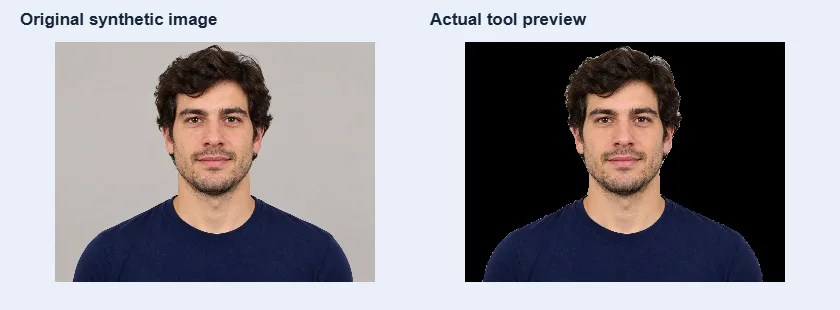
Preview the outline around the person, choose a transparent or solid background and save the result as a PNG. The photo is processed in your browser.
How to Remove Background Areas Around a Person
Start with a JPG, PNG or WebP portrait with a clear view of the person. Add the photo to the workspace, choose Person cutout and select Remove background. The model runs in the browser. The first run may take longer while the model loads.
Choose a photo with a clear outline
Hair, clothing and other edges are easier to separate when the subject stands out from the background. If several people or objects overlap, try a closer crop using Crop and Resize Image first.
Preview the cutout and choose a background
Check the shoulders, hair and spaces between arms and body at full size. Keep the transparent background if you plan to layer the portrait over another image. Choose a solid color if you need a finished photo on a single background.
Export and Check Your PNG
Save the result as a PNG. Open the downloaded file to check the outline and background before using it. Some image viewers display transparent areas against white or black, so verify transparency in an editor if it matters for your next step.
To keep the original scene and soften it behind the subject, try Blur Background. To place the finished PNG on top of another picture, use Overlay Images.
Person Cutout Questions
What does Person cutout detect?
Person cutout is designed to separate a person from the background. Choose a portrait with a clear outline and inspect the preview before saving.
Which image formats can I open?
Use a JPG, PNG or WebP image up to 25 MB. The result is saved as a PNG.
Where is the photo processed?
The cutout is generated in your browser on your device. The photo is kept in the workspace while you use it.
Check the subject edges at actual size
Remove background from a photo of a person and inspect hair and shoulders on more than one backdrop. The workspace uses person segmentation. A synthetic demo can show that the result has an alpha channel, but each photo can still need a closer crop or a source with better contrast.

Check translucent edges before placing a cutout
After you remove a background, composite the cutout on both light and dark colors. Strands of hair or translucent objects can have partially transparent edges. If a halo appears, go back to the original and test a crop that keeps more space around those edges.
The PNG specification explains how intermediate alpha values represent partial transparency.
Use a dark backdrop to inspect cutout edges
After removing the background, switch the preview to black and check the outline where the source was light. A pale rim is easier to see against black. Switch back to transparent before saving if the result will be placed on a different background.