
Add Name and DOB on Photo – Place a Date and Name Label
Add a name and date of birth to a photo online in seconds — print a name and DOB label on any picture, in the position and size you choose, with an optional dark strip behind the text to keep it readable.
Drop an image here, paste it, or choose a file
JPG, PNG, WebP, GIF and BMP, up to 25 MB. Your image never leaves this browser — nothing is uploaded.
Live Preview
No regions yet — drag on the preview above to draw one.
Uncheck to keep descriptive tags from a JPEG when saving as JPEG. Location data and embedded previews are always removed.
Everything runs in your browser, so your photos are never uploaded. Type the details, place the label, and download the result.
How to Use Add Name & DOB on Photo Online
Adding a name and date of birth takes three quick steps: add your photo, type the name and date, and download. There is nothing to install and no account to create, and the tool works the same way on a phone as on a computer.
Prepare Input Files or Images
Click "Choose an image" to pick a file from your device, drag it onto the drop area, or copy an image and paste it straight into the page. JPG, PNG, WebP, GIF and BMP files are accepted, and each file must be under 25 MB. The label is printed on the photo itself, so use a clear, well-lit photo where the label area is not covering a face or an important detail.
Choose Settings and Preview Changes
Type the name and the date of birth exactly as you want them printed — the date is free text, so any format works (for example 12/03/1998). Choose the position: bottom centre is the usual spot for a label under a portrait, top positions suit photos where the bottom is busy. Set the text size in pixels, pick a colour, and keep the dark strip on if the photo behind the text is light — it keeps the label readable on any background.
Download and Verify the Output
Click "Download photo with name & DOB" to save the result. The download name starts with "name-dob-" and your original file is never changed. Open the downloaded file at full size and read the label carefully: check the spelling of the name and every digit of the date, because the text is printed exactly as typed.
Add Name & DOB on Photo: Editing Controls and Preview Options
The label has two lines: the name on the first line and the date of birth on the second. The text size is in absolute pixels, so a 32 px label on a 1200 px-wide photo is much smaller, relative to the picture, than 32 px on a 400 px-wide one — scale the size to the photo. The dark strip is a semi-transparent black band behind both lines; it makes white text readable over a bright photo without covering much of the picture.
Recommended Default Settings
For a portrait photo, use bottom centre, white text, the dark strip on, and a size around 5% of the photo width. For a small ID-style photo, a smaller size (20–24 px) keeps the label from covering the face. Always check the spelling and the date digits in the preview before downloading.
Add Name & DOB on Photo: Examples and Use Cases
People add a name and date of birth to a photo when a form, an application or a record asks for a labelled photograph. The label identifies whose photo it is and when they were born, printed on the photo itself so the two cannot be separated. The same label works for ID photos, application photos, and any picture that needs identifying details attached to it.
Real Input and Output Example
Use an obvious test name and test date when learning the controls. Check the overlay at the final size before preparing a real upload.
Supported Formats, File Sizes and Browser Limits
The name & DOB tool accepts JPG, PNG, WebP, GIF and BMP uploads and exports to PNG, JPG or WebP. Dimensions are never changed — a 600 × 800 px photo stays 600 × 800 px; only the label is added. The output is capped at 8,192 pixels on a side, and the name is limited to 120 characters.
Image Quality, Size and Compatibility Checks
The label is drawn directly onto the pixels, so it is baked into the downloaded file — it cannot be edited or removed afterwards, so keep your original if you might need to change the details. PNG export keeps text edges perfectly crisp; JPG export at 90% is fine for photos. If a form or an organisation asks for a photo with specific requirements, check their instructions for the size, format and layout they expect — this tool prints the label you type, in the layout you choose, and does not check it against any external specification.
Common Add Name & DOB on Photo Problems and Fixes
The most common problem is a typo in the downloaded label — the text is printed exactly as typed, so a wrong digit in the date or a misspelled name goes straight into the file. Read the preview carefully before downloading. The second problem is a label that is hard to read: white text on a bright photo needs the dark strip, or a darker text colour.
Troubleshooting Upload, Preview or Export Issues
A file that refuses to load is usually an unsupported type or a damaged file — the tool names the file and says what is wrong. If the label does not appear, check that the name and date boxes are not empty. If the label covers a face, move it to a different position or make the text smaller. If a download does not start, check that your browser is not blocking downloads from this site, then try again.
Related Tools and Next Steps
Merge Images, Passport Photo Maker, Add Text to Image, Merge Photo and Signature.
Frequently Asked Questions About Add Name & DOB on Photo
Mobile Support, File Privacy and Download Options
The name & DOB tool works in any modern mobile or desktop browser with JavaScript enabled: tap "Choose an image" to pick a photo from your phone, or drag a file in on a computer. Your pictures are processed locally and never uploaded, and they disappear when you close or refresh the page. The download saves straight to your device.
What date format should I use for the DOB?
Whatever format you need — the date is free text and is printed exactly as typed, so 12/03/1998, 12 Mar 1998 and 1998-03-12 all work. Use the format the form or organisation you are preparing the photo for expects.
Can I change the name or date after downloading?
No — the label is drawn onto the pixels, so it is part of the downloaded image, not a separate layer. Keep your original photo and re-run the tool from it if you need to correct a spelling or a date.
Will this photo be accepted by a form or an organisation?
This tool prints the label you type, in the layout you choose. It does not check the result against any form or organisation's specification — those vary, and they change. Check the instructions for the form or organisation you are applying to for the photo size, format and layout they expect, and match those settings here.
How do I keep the label readable on a bright photo?
Keep the dark strip switched on: it puts a semi-transparent black band behind the text, so white lettering stays readable over any background. A darker text colour, or moving the label to a darker part of the photo, works too.
Keep the name and date readable after export
Add name and DOB on photo copies only when the destination requests it. Compare spelling and date format with the form. Position the line so a later thumbnail crop does not remove it, and share the result only with the intended recipient.
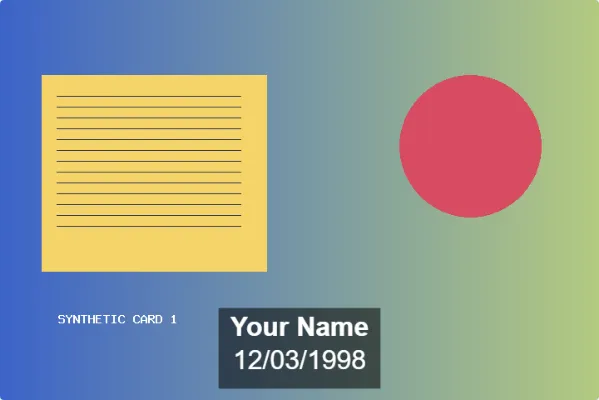
Add name and DOB on photo fields exactly as required
Check whether the form asks for a date of birth or the date the photo was taken. They are different dates. Add the text only when the notice requires it and follow the stated format and placement. If the strip changes the output height, check the saved dimensions including that strip.
The TNPSC Group IV notice is an example of a form that asks for the photo date.

Review the name and date in the saved image
When a form asks you to add a name and date, compare its requested date format with the generated copy. Open the saved image and check the name and date at the display size the recipient will use.
