Image Resizer & Picture Resizer – Resize Photos Online
Use the image resizer to set a photo’s width and height in pixels, by percentage or in centimetres, millimetres or inches.
Drop images here, paste from clipboard, or choose files
Supports JPG, PNG, WebP, GIF, and BMP • Max 25 MB per file
Tip: You can also copy any picture to your clipboard and press Ctrl+V to paste
Live Preview
Uncheck to keep descriptive tags from a JPEG when saving as JPEG. Location data and embedded previews are always removed.
100% preserves original dimensions. 50% halves each dimension; 200% doubles each dimension.
Scale proportionally so the image fits inside these maximum boundaries without stretching or distortion.
Scale the image by its longest dimension. The shorter edge scales proportionally automatically.
Keeps the original dimensions and pixels. Savings depend on the image, and optimization may remove metadata.
JPG and WebP quality settings trade detail for file size. Use File Size Only to preserve the original pixels.
JPEG does not support transparency. Transparent areas will be filled with this background color.
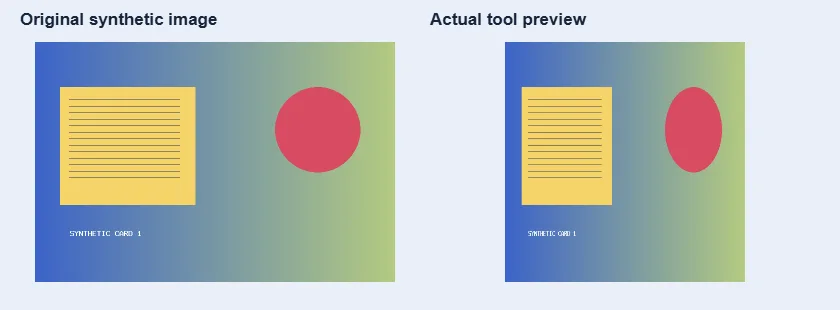
Lock the aspect ratio to keep the image in proportion. Resize one photo or apply one set of dimensions to a batch, directly in your browser.
How to Use the Online Image Resizer
Resizing an image takes four quick steps: add your picture, pick how you want to size it, check the preview, and download. There is nothing to install and no account to create, and the tool works the same way on a phone as on a computer.
Prepare Input Files or Images
Click “Choose Images” to pick files from your device, drag them onto the drop area, or copy an image and paste it straight into the page. JPG, PNG, WebP, GIF and BMP files are accepted, and each file must be under 25 MB. For the sharpest result, start from the highest-resolution version of the picture you have — shrinking a large photo keeps it crisp, while enlarging a tiny one cannot add detail that was never there.
Choose Settings and Preview Changes
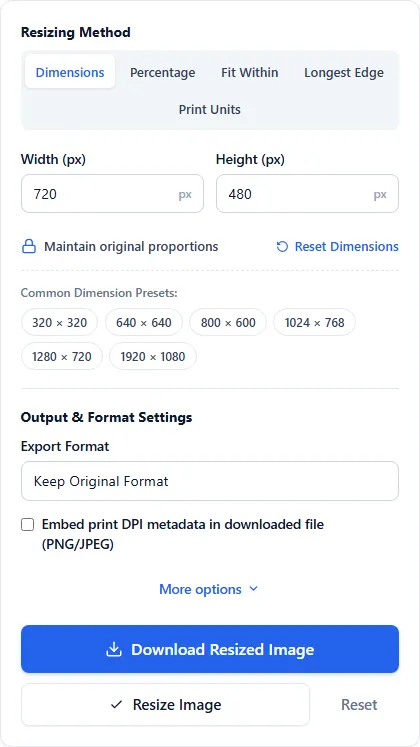
Pick a sizing mode: Dimensions for exact width and height, Percentage to scale proportionally, Fit Within to set maximum limits, Longest Edge for single-dimension scaling, or Print Units for cm, mm or inches at a chosen DPI. The aspect-ratio lock is on by default, so changing one side adjusts the other and the picture keeps its proportions; switch it off only when you want an exact stretch. The live preview updates instantly, displaying both original and resized dimensions.
Download and Verify the Output
Click “Download Resized Image” to save your processed picture immediately, or “Download All” to save every file in turn if you uploaded multiple photos. Check the downloaded file’s dimensions in your photo viewer or file manager: they will match the requested output size exactly without watermarks.
How the Picture Resizer Changes Pixel Dimensions
Digital images are composed of a two-dimensional grid of pixels. When you resize an image, the browser recalculates the pixel grid using bicubic and bilinear interpolation algorithms executed directly within your browser’s HTML5 Canvas engine.
Downscaling vs Upscaling Quality
Downscaling (reducing dimensions) averages neighboring pixels together, preserving sharp edges and high perceptual quality while reducing file size. Upscaling (enlarging beyond native dimensions) interpolates between existing pixels, which can soften sharp details because software cannot invent authentic optical information that was never captured originally.
In-Browser Client-Side Processing
Unlike conventional web tools that send your photos to a third-party server, MergeImagez processes all data inside your device memory. This means your files remain 100% private, processing is instant, and there are never server queue delays or file size quotas.
Resize Image by Pixels or Percentage
Selecting the right resizing method depends on where your final picture will be published or stored. Our tool provides four intuitive methods suited for different workflows.
Exact Dimensions (Pixels)
Use pixel dimensions when you need to satisfy rigid website specifications, e.g. web headers, app icons, product catalogs, or social media profile standards. Maintain the aspect lock on to prevent unnatural stretching.
Percentage Scaling
Percentage scaling (such as 50% or 25%) is the fastest way to shrink high-resolution camera photos down to email-friendly or web-friendly proportions without needing to calculate pixel math.
Fit Within & Longest Edge
Fit Within lets you define a bounding box (for example 1200 × 800 px) that portrait, landscape, and square images all fit inside without cropping. Longest Edge scales the longest side to an exact target, letting the shorter side follow naturally.
For a profile image that needs 600 × 600 pixels, crop the original to a square before resizing to preserve proportions. For printing, use the print units in the image resizer and check both the dimensions and the chosen DPI. For example, a four-inch side at 300 DPI needs 1,200 pixels. See Adobe’s explanation of resolution and resampling for how pixels translate to print size.
Common Image Dimensions
Below is a quick reference guide of standard dimensions and aspect ratios used across modern web platforms, display screens, and official documentation forms:
| Platform / Use Case | Recommended Dimensions | Aspect Ratio | Recommended Format |
|---|---|---|---|
| Avatar / Profile Photo | 320 × 320 px | 1:1 Square | JPG / PNG |
| Square Post / Product Card | 640 × 640 px | 1:1 Square | JPG / WebP |
| Standard Web Article Display | 800 × 600 px | 4:3 Standard | WebP / JPG |
| Tablet / Presentation Slide | 1024 × 768 px | 4:3 Standard | JPG / WebP |
| High Definition (HD 720p) | 1280 × 720 px | 16:9 Widescreen | JPG / WebP |
| Full HD (FHD 1080p / Wallpaper) | 1920 × 1080 px | 16:9 Widescreen | JPG / WebP |
| Passport Photo (Official Exam / ID) | 3.5 × 4.5 cm (413 × 531 px @ 300 DPI) | 7:9 Ratio | JPG |
| Standard A4 Document / Printout | 21.0 × 29.7 cm (2480 × 3508 px @ 300 DPI) | 1:1.414 (ISO) | PNG / PDF |
Benefits of Using MergeImagez Resize Image
MergeImagez is designed as a focused, lightweight image utility engineered for everyday users and web professionals alike. Key benefits include:
Complete Data Privacy
Your images are never sent over the internet or stored on cloud servers. All processing happens in local browser memory using the HTML5 Canvas API, ensuring complete privacy for personal documents and photos.
Transparent PNG & Color Fill Control
Transparent PNG and WebP files retain full transparency when exported as PNG or WebP. If you choose to convert to JPG, you can specify the background color fill (default white) so transparent areas never turn black.
Real Print DPI Metadata Injection
When preparing files for physical printing, you can embed real DPI metadata (such as 300 DPI) into PNG and JPEG files via byte-level pHYs chunk and JFIF density header encoding.
Related Image Tools
Merge Images, Resize Image in Pixels, Bulk Image Resizer, Resize Image in Cm, Reduce Image Size in KB.
Use the image resizer for a fixed-width upload
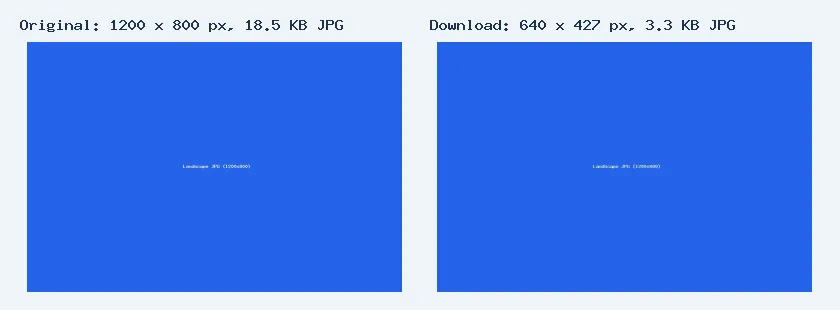
If a website asks for a 640-pixel-wide image, enter 640 in the width field and preserve the aspect ratio. A 1,200 by 800 source becomes approximately 640 by 427 pixels after rounding. If the website also requires 640 by 640, crop to a square first so the source fits the frame without stretching.
Use the image resizer for pixel dimensions and the compressor when a file must fit a limit in KB. Changing the dimensions can reduce the number of pixels, while adjusting export quality can reduce file size at the same dimensions.
Frequently Asked Questions About Image Resizer
Mobile Support, File Privacy and Download Options
The resizer works in any modern mobile or desktop browser with JavaScript enabled: tap "Choose Images" to pick photos from your phone, or drag files in on a computer. Your pictures are processed locally and never uploaded, and they disappear when you close or refresh the page. Downloads save one file per image, directly to your device.
How can I resize an image online?
Upload your picture by clicking "Choose Images", dragging a file into the dropzone, or pasting from your clipboard. Choose your preferred resizing method (Dimensions, Percentage, Fit Within, or Longest Edge), adjust the values, check the live preview, and click "Download Resized Image".
How do I resize an image without stretching it?
Keep the "Lock aspect ratio" toggle enabled. When locked, changing either width or height automatically calculates the other dimension according to your picture’s original proportions, ensuring it never appears stretched or squished.
How can I change image width and height?
Select the "Dimensions" tab, enter your target width and height in pixels, and verify the live preview. If you need arbitrary non-proportional dimensions, uncheck the aspect ratio lock before entering your numbers.
Can I resize an image by percentage?
Yes. Switch to the "Percentage" tab and select one of our quick chips (25%, 50%, 75%, 100%, 150%, 200%) or type a custom percentage. The tool calculates the resulting width and height automatically.
Does resizing reduce image quality?
Downscaling an image to smaller dimensions does not reduce visual sharpness—in fact, pixels are condensed cleanly. Upscaling beyond original dimensions, however, requires pixel interpolation and will make images look softer. For best quality, always start with high-resolution source files.
Can I resize an image without losing transparency?
Yes. Keep the output format set to "Keep Original Format", "PNG", or "WebP". These formats fully preserve alpha transparency. If you choose JPG (which does not support transparency), our tool lets you pick a background fill color (white by default) so transparent areas never turn black.
Which image formats are supported?
The resizer accepts JPG, PNG, WebP, GIF, and BMP image files up to 25 MB each. You can export your resized result as JPG, PNG, or WebP.
Are my uploaded images stored on a server?
No. MergeImagez operates 100% client-side in your browser using the HTML5 Canvas API. Your pictures are never uploaded, never stored on external servers, and are immediately cleared when you close the tab.
Can I resize images on a mobile phone?
Yes. The resizer is fully responsive and touch-optimized for iOS and Android smartphones and tablets. Tap "Choose Images" to select a photo from your photo library or camera, set your dimensions, and save directly to your mobile device.
Use the image resizer when a form specifies both dimensions
If a 3:2 photograph must fit a 640 by 640 pixel frame, decide first whether to crop or retain the full picture with padding. With the aspect lock on, a 640-pixel width gives a height of about 427 pixels. Start with Crop and Resize Image when the subject must fill a square without stretching.
Compare a proportional resize with a forced square
The image resizer keeps proportions when the width and height are linked. For a 720 by 480 source at a 540-pixel width, the proportional height is 360. If you unlink dimensions and make both sides 540, a circle appears stretched. Try a square crop instead when the file must fit a square slot without distorting the subject.