
Bulk Image Resize Tool – Resize Many Photos at Once
Use the bulk image resize tool when a group of photos needs one size setting.
Drop images here, paste from clipboard, or choose files
Supports JPG, PNG, WebP, GIF, and BMP • Max 25 MB per file
Add multiple images at once — the same size settings apply to every picture with individual downloads.
Tip: You can also copy any picture to your clipboard and press Ctrl+V to paste
Live Preview
Uncheck to keep descriptive tags from a JPEG when saving as JPEG. Location data and embedded previews are always removed.
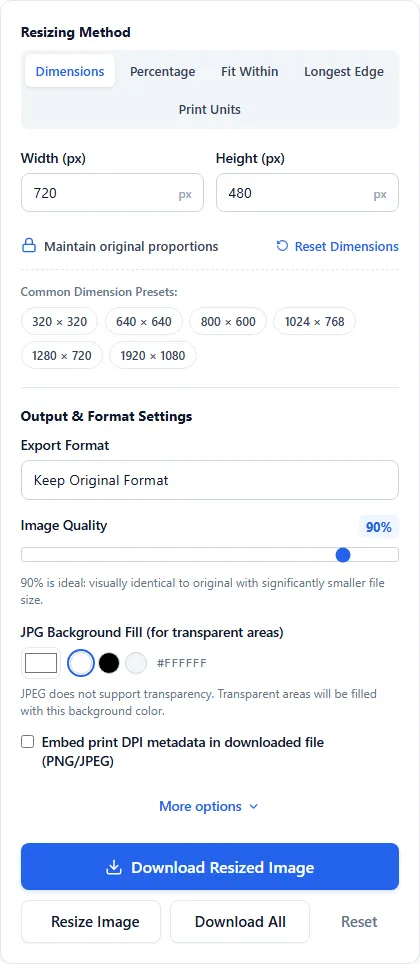
100% preserves original dimensions. 50% halves each dimension; 200% doubles each dimension.
Scale proportionally so the image fits inside these maximum boundaries without stretching or distortion.
Scale the image by its longest dimension. The shorter edge scales proportionally automatically.
Keeps the original dimensions and pixels. Savings depend on the image, and optimization may remove metadata.
JPG and WebP quality settings trade detail for file size. Use File Size Only to preserve the original pixels.
JPEG does not support transparency. Transparent areas will be filled with this background color.
Keep the aspect ratio locked if the photos have different orientations, or set both dimensions when every original already has the same proportions. Review the new dimensions for each file before saving.
How to Resize Images in Bulk With Correct Dimensions
Bulk resizing is the same as resizing one image, repeated for every file you add: one set of settings, applied to the whole batch. It suits product photos, event pictures, and any job where dozens of images need the same treatment.
Prepare Input Files or Images
Select many files at once in the file picker, or drag a whole folder's contents onto the drop area. JPG, PNG, WebP, GIF and BMP files are accepted, each under 25 MB. There is no fixed limit on the number of images, but every picture is held in your browser's memory, so very large batches of huge photos can slow the page — if that happens, work in smaller groups.
Choose Settings and Preview Changes
Set the size once: a width in pixels, a percentage, or a print size in cm, mm or inches. With the aspect lock on, the driven dimension is shared and the other side follows each picture's own shape — so a batch of mixed landscape and portrait photos all end up, say, 800 px wide, each with its correct height. Click any file in the list to preview it at its new size.
Download and Verify the Output
Download files one by one with their Download buttons, or use "Download all resized images" to save the whole batch in turn. Files download one after another as separate files — there is no ZIP archive — and your browser may ask permission to allow multiple downloads from this site. Spot-check a couple of downloads: their dimensions should match the sizes shown in the list.
Bulk Image Resizer: Width, Height and Aspect Ratio Settings
In a batch, the width you type (or the height, if you edit that field last) is the shared target, and the aspect lock keeps every picture's shape. That is why the list shows different output heights for different pictures even though the settings are the same — each height is calculated from that picture's own ratio. Switch the lock off only when every file must come out at one exact rectangle, accepting that some will be stretched.
Recommended Default Settings
For a mixed batch, use a width target with the lock on — for example 1200 px wide for web photos — and leave the format on "Keep original". Percentage mode (for example 50%) is the simplest choice when every picture just needs to be smaller by the same factor. Keep JPG quality at 90% for photographs.
Bulk Image Resizer: Examples and Use Cases
Typical bulk jobs: preparing twenty product photos for a shop at a uniform width, shrinking a holiday album before sharing it, or standardising screenshots for a document. In each case the win is the same — set the size once instead of once per picture — and the per-file size display lets you confirm every result before downloading.
Real Input and Output Example
Load three photos — 1200 × 800 px, 600 × 900 px and 800 × 800 px — and set the width to 400 px with the lock on. They come out at 400 × 267 px, 400 × 600 px and 400 × 400 px: the same width, each with its own correct height. Set 50% instead and the same three become 600 × 400 px, 300 × 450 px and 400 × 400 px.
Pixels, Measurement Units, DPI and Output Quality
All sizing modes work in bulk: pixels for exact screen sizes, percent for uniform scaling, and cm, mm or inches at a chosen DPI for print sizes (px = cm × DPI ÷ 2.54, px = mm × DPI ÷ 25.4, px = inches × DPI). DPI conversion applies per file in exactly the same way, so a batch set to 10 cm wide at 300 DPI gives every picture a 1181 px width.
Image Quality, Size and Compatibility Checks
Quality rules do not change in bulk: shrinking keeps detail, enlarging softens it. Transparent PNGs stay transparent in PNG and WebP downloads; JPG flattens transparency onto white. The 25 MB per-file limit and the 8,192 px per-side output cap apply to every file in the batch, and a file that fails (corrupt, unsupported, or oversize) is reported by name without stopping the rest of the batch.
Common Bulk Image Resizer Problems and Fixes
If some downloads never appear, your browser blocked multiple downloads — allow them for this site and use "Download all" again, or download the remaining files one by one. If the page slows down with a big batch, remove files you have already downloaded, or split the batch into smaller groups. A stretched file in the list means the aspect lock was off when the size was set.
Troubleshooting Upload, Preview or Export Issues
A file that fails to load is reported by name and skipped; the rest of the batch is unaffected. If every file shows a dash instead of a size, the size settings are incomplete — enter a width (with the lock on) or a percentage. If the preview shows the wrong picture, click the file you want to preview in the list.
Related Tools and Next Steps
Merge Images, Image Resizer, Reduce Image Resolution, Reduce Image Size in KB.
Keep mixed orientations in a batch
Choose a maximum width with the aspect ratio locked if some photos are landscape and others portrait. Set an identical width and height only after the originals share an aspect ratio, or the batch may mix stretched and correctly proportioned results.
Frequently Asked Questions About Bulk Image Resizer
Mobile Support, File Privacy and Download Options
Bulk resizing works in any modern mobile or desktop browser. All processing happens on your device — images are never uploaded — and each resized file downloads separately, so you can check them one at a time.
How many images can I resize at once?
There is no fixed count, but every image is held in your browser's memory, so very large batches of big photos can slow the page down. If the page feels slow, work in smaller groups — for example 10 to 20 photos at a time — and remove files once you have downloaded them.
Do all images come out the same size in bulk mode?
The driven dimension is shared, but with the aspect lock on the other side follows each picture's own proportions — so mixed photos share a width but keep their correct heights. Only with the lock off does every file come out at one exact width and height.
Is there a ZIP download for the whole batch?
No. "Download all resized images" saves one file per image, one after another. Your browser may ask permission to allow multiple downloads from this site; if some downloads are blocked, allow them and try again, or use the per-file Download buttons.
Can I resize images of different formats together?
Yes. JPG, PNG, WebP, GIF and BMP files can be mixed in one batch. With "Keep original" format, each file keeps its own format (GIF and BMP export as PNG, because browsers cannot encode those formats); or pick one format for the whole batch.
Check one representative output from the batch
When a bulk image resize tool receives both portrait and landscape photos, choose a boundary that fits both. Check the smallest source before enabling upscaling and inspect the output filenames so the new copies are easy to distinguish from originals.
Use the bulk image resize tool with mixed orientations
Apply one width and height boundary to a representative portrait and landscape file before adding the full batch. Compare the two outputs with the originals. A fit boundary lets a tall or wide image stop at whichever side reaches the limit first.
Adobe shows how a batch resize-to-fit operation uses a width and height boundary.
Bulk image resize tool checklist for portrait and landscape sources
Start with one landscape and one portrait image. Set the width limit and inspect both entries in the file list. With the aspect ratio locked, they can have different heights. Save a short test batch before applying the same settings to a large folder.
