
Split Image Online – Export a Photo as Numbered Tiles
Split one image into a grid of tiles — quarters, strips, or up to a 10 × 10 grid — and download every tile as a separate file.
Drop an image here, paste it, or choose a file
JPG, PNG, WebP, GIF and BMP. Your image never leaves this browser — nothing is uploaded.
Split one image into a grid of tiles — rows, columns, or both. Each tile downloads as a separate file, numbered in reading order.
Result preview
Tiles are numbered in reading order, so they are easy to reassemble, post, or print in sections. Everything runs in your browser; nothing is uploaded.
How to Use Split Image Online
Splitting an image takes four quick steps: add your picture, set the grid, check the tiles, and download. There is nothing to install and no account to create, and the tool works the same way on a phone as on a computer.
Prepare Input Files or Images
Click "Choose an image" to pick a file from your device, drag it onto the drop area, or copy an image and paste it straight into the page. JPG, PNG, WebP, GIF and BMP files are accepted, and each file must be under 25 MB. Start from the highest-resolution version you have — each tile is only a fraction of the original, so a small source image gives small, soft tiles.
Choose Settings and Preview Changes
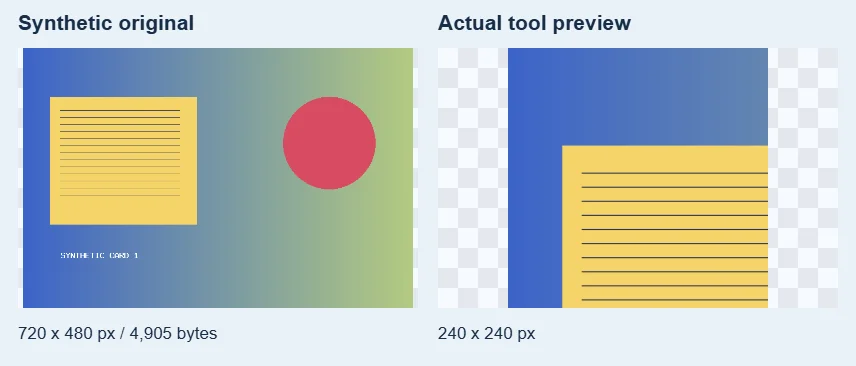
Set the number of columns and rows: 2 × 2 for four quarters, 3 × 1 for three vertical strips, 1 × 4 for four horizontal strips, up to 10 × 10. The grid info line shows the tile count and the size of each tile, and the preview shows the first tile. When a side does not divide evenly, edge tiles differ by 1 px — the info line says so, and the tiles still join up exactly.
Download and Verify the Output
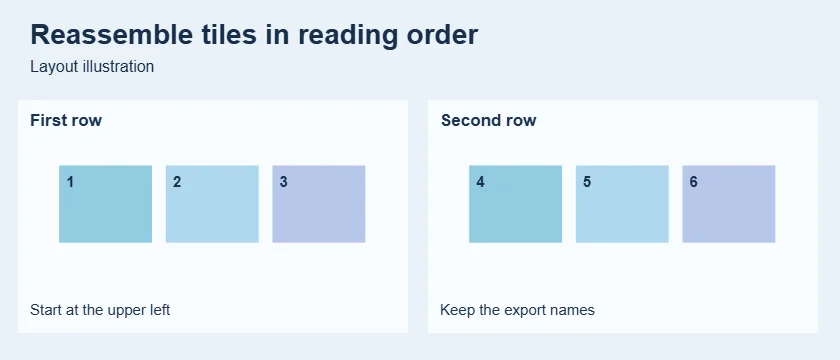
Click "Download all tiles" to save every tile one after another as separate files, numbered in reading order (left to right, top to bottom). There is no ZIP file, and your browser may ask permission to allow multiple downloads. Check a couple of tiles: their dimensions should match the sizes shown on the page, and laid out in numbered order they should rebuild the original picture exactly.
Split Image: Editing Controls and Preview Options
The only grid controls are the column and row counts (1–10 each). The split is always even: the image is divided into equal parts as far as whole pixels allow, with any remainder going to the edge tiles. The format selector applies to every tile — PNG keeps transparency, JPG is smaller for photographs, WebP gives small files with transparency support.
Recommended Default Settings
Keep the defaults — 2 columns × 2 rows, "Keep original" format — for a first split, and adjust from there. For printing a large image in sections, count the sheets first: a 2 × 3 grid over six pages, for example. For social grids, the Instagram grid maker (linked below) is the better tool, because it sizes the tiles to Instagram's 3:4 grid.
Split Image: Examples and Use Cases
People split images for everyday jobs: cutting a long screenshot into pieces that fit an upload limit, dividing a poster into printable sections, preparing tiles for a puzzle or a mosaic, or splitting a panorama into swipeable slides. A 2 × 2 split of a group photo gives four printable quarters; a 1 × 3 split of a wide banner gives three strips that can be posted one after another.
Real Input and Output Example
Take a 1200 × 800 px landscape photo. Split 2 × 2, it becomes four 600 × 400 px tiles. Split 3 × 1, it becomes three 400 × 800 px vertical strips. Split 3 × 3, it becomes nine tiles of 400 × 267 px — except the bottom row, which is 400 × 266 px, because 800 does not divide evenly by 3 (267 + 267 + 266 = 800). Laid out in numbered order, the tiles rebuild the original exactly.
Supported Formats, File Sizes and Browser Limits
The tool accepts JPG, PNG, WebP, GIF and BMP uploads up to 25 MB, and exports tiles to PNG, JPG or WebP. The grid is capped at 10 × 10 (100 tiles), and the output is capped at 8,192 pixels on a side — a tile can never be larger than the original, so the cap only matters for very large sources. Splitting never changes quality: the tile pixels are copied exactly from the original.
Image Quality, Size and Compatibility Checks
Tiles are exact pixel copies, so they are as sharp as the original — nothing is resampled. Quality only changes if you export as JPG (lossy compression) instead of PNG. Transparent PNGs stay transparent in PNG and WebP tiles; JPG flattens transparency onto white. A 10 × 10 grid downloads 100 files, so check your browser's multiple-download permission before starting a big grid.
Common Split Image Problems and Fixes
The most common surprise is a missing tile or two — that means the browser blocked multiple downloads part-way through. Allow multiple downloads for this site and run the download again; already-downloaded tiles are simply saved twice, which is harmless. The second is tiles that look 1 px off when reassembled — that is the expected edge remainder when the image does not divide evenly, not an error. The third is a very slow page with a 10 × 10 grid on a phone — try fewer tiles, or a smaller source file.
Troubleshooting Upload, Preview or Export Issues
A file that refuses to load is usually an unsupported type or a damaged file — the tool names the file and says what is wrong. If the preview is empty, the grid may be set to 0 in one direction — set both rows and columns to at least 1. If the download does not start, check that your browser is not blocking downloads from this site, then try again.
Related Tools and Next Steps
Merge Images, Instagram Grid Maker, Crop and Resize Image, Image Resizer, Photo Collage Maker, Reduce Image Size in KB.
Frequently Asked Questions About Split Image
Mobile Support, File Privacy and Download Options
The splitter works in any modern mobile or desktop browser with JavaScript enabled: tap "Choose an image" to pick a photo from your phone, or drag a file in on a computer. Your pictures are processed locally and never uploaded, and they disappear when you close or refresh the page. Downloads save straight to your device.
How do I split an image into equal parts?
Add your image, then set the number of columns and rows — for example 2 columns × 2 rows for four equal quarters, or 3 columns × 1 row for three vertical strips. The preview shows the first tile, and "Download all tiles" saves every tile as a separate file, numbered in reading order.
What happens if the image does not divide evenly?
The tiles still join up exactly. When a side does not divide evenly, the split points are rounded down, so edge tiles can differ by 1 px — for example, a 1001 px-wide image split into 2 columns gives tiles of 500 px and 501 px. No pixels are lost or duplicated.
Can I split an image into rows or columns only?
Yes. Set rows to 1 to split into vertical strips (columns only), or columns to 1 to split into horizontal strips (rows only). A 1 × 1 grid is just the original image, so the tool is only useful with at least 2 rows or 2 columns.
What size are the tiles?
Each tile is roughly the image size divided by the grid: a 1200 × 800 px image split 2 × 2 gives four 600 × 400 px tiles. The grid info line on the page shows the exact tile count and size before you download, including the 1 px edge difference when the image does not divide evenly.
Are my photos uploaded to a server?
No. Splitting happens entirely in your browser using the Canvas API. Your photos are never sent to a server, never stored, and disappear when you close or refresh the page.
Choose the grid before cutting the source
To split image strips or tiles, align the grid around important text and subjects. Open adjacent results to check the boundary. Name the files by row and column if you must reassemble them later.

Measure tile edges after splitting an odd-sized source
If the source width does not divide evenly by the number of columns, inspect the dimensions of the resulting tiles individually. Keep source coordinates in mind when assembling the tiles again, especially if your layout requires every tile to be the same size.
MDN illustrates how canvas separates the original crop rectangle from the destination dimensions.
Split image tiles for reassembly in reading order
When you split a picture into more columns than rows, check the first tile before exporting the set. The first tile begins at the upper-left corner. Keep the numbered names if you need to put the tiles back together. Reconstruct one row before arranging all the rows so missing pieces are easy to spot.
Split image into horizontal strips for a continuous reading sequence
Use one column when each strip needs to keep the source width. Use three rows for the sample arrangement below. Open the first strip at full size and check whether a label or border lands directly on the cut.
