Instagram Photo Without Cropping – Fit a Full Picture
Post a full photo on Instagram without cropping it — fit the whole picture into a 4:5 portrait, 1:1 square, or 1.91:1 landscape frame with a blurred or coloured background filling the rest.
No more cut-off heads, missing edges, or squeezed panoramas. Everything runs in your browser; nothing is uploaded.
How to Use Instagram (No Crop) Online
Posting without cropping takes four quick steps: add your picture, pick the frame shape, choose a background, and download. There is nothing to install and no account to create, and the tool works the same way on a phone as on a computer.
Prepare Input Files or Images
Add a JPG, PNG, WebP, GIF or BMP file under 25 MB using the file picker, drag-and-drop, or paste. Any shape works — a tall portrait, a wide panorama, a square — because Fit mode keeps the whole picture whatever its shape. Start from the highest-resolution version you have, since Instagram compresses every upload.
Choose Settings and Preview Changes
Select 1,080 by 1,350 pixels for the 4:5 portrait export, 1,080 by 1,080 pixels for square, or 1,080 by 566 pixels for landscape. Check the result in the intended posting preview.
Download and Verify the Output
Click "Download image" and check the file: it should be exactly the frame size you picked. Post it to Instagram as a single photo — because the file already has Instagram's shape, Instagram will not crop it further. Do not pinch or adjust the crop when posting, or the edges will be cut after all.
Instagram (No Crop): Editing Controls and Preview Options
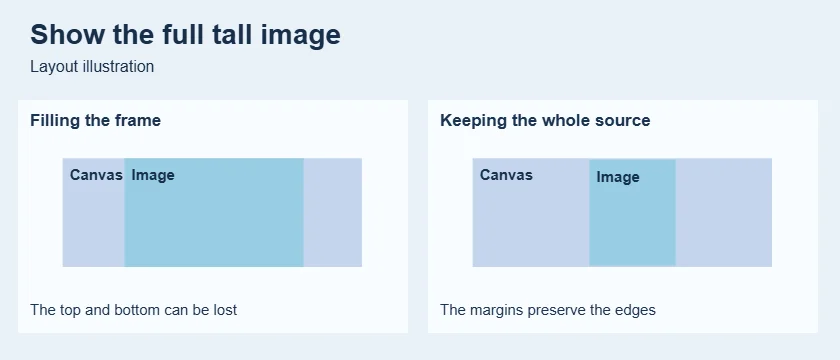
Fit mode scales your photo to the largest size that fits inside the chosen frame and fills the leftover space with a background — blurred photo by default, or a colour you pick, or transparent for a PNG. The blurred background is a stretched, heavily blurred copy of your own photo, so the colours always match. Fill mode scales the photo until it covers the whole frame and crops the overflow — the opposite of no-crop, offered for comparison.
Recommended Default Settings
Start with the 4:5 portrait export and Fit to keep the whole source. Review the posting and profile previews because their framing can differ.
Instagram (No Crop): Examples and Use Cases
No-crop posts suit photos that Instagram would otherwise cut: a tall portrait where the head or feet would be cropped, a wide panorama where the ends would be lost, a group photo where the people at the edges matter, or artwork and screenshots with text near the border. A square photo needs no help — it already fits — but a 4:5 frame still gives it more feed space than a square post.
Real Input and Output Example
A 1,200 by 1,800 pixel portrait placed in a 1,080 by 1,350 pixel frame at Fit scales to 900 by 1,350 pixels. The export pads both sides.
Supported Formats, File Sizes and Browser Limits
The tool accepts JPG, PNG, WebP, GIF and BMP uploads up to 25 MB, and exports to PNG, JPG or WebP. Instagram accepts JPG and PNG posts; a 1080 × 1350 px JPG at 90% quality is usually 150–500 KB. The output is capped at 8,192 pixels on a side, which the Instagram frame sizes are far below.
Image Quality, Size and Compatibility Checks
A no-crop post made from a large photo stays sharp; one made from a small photo and enlarged to 1080 px wide softens, because the browser can only interpolate between the pixels that exist — this tool does not use AI upscaling. Instagram compresses every upload again, so start from the best quality you can. Transparent PNGs stay transparent in PNG and WebP downloads; JPG flattens transparency onto white.
Common Instagram (No Crop) Problems and Fixes
The most common complaint is Instagram cropping the post anyway — that happens when the crop is adjusted while posting. Post the file as it is: it already has Instagram's shape. The second is a blurred background that looks muddy — lower the blur slider, or switch to a solid colour. The third is a photo that looks small in the frame — that means the photo's shape is very different from the frame's; try a different frame shape, or accept the background as part of the look.
Troubleshooting Upload, Preview or Export Issues
If a file will not load, it is usually an unsupported type or a corrupt file; the tool names the file in its error message. If the preview shows the whole photo but the download is cropped, check that Fit mode (not Fill) is selected. If the download does not start, allow downloads from this site in your browser and try again.
Related Tools and Next Steps
Merge Images, Instagram Grid Maker, Change Aspect Ratio, Image Resizer, Crop and Resize Image, Reduce Image Size in KB.
Frequently Asked Questions About Instagram (No Crop)
Mobile Support, File Privacy and Download Options
This page works in any modern mobile or desktop browser. Your images are processed locally with the Canvas API and never leave your device, and downloads save straight to your phone or computer.
How do I post a full photo on Instagram without cropping?
Fit the whole photo into one of Instagram's frame shapes — 4:5 portrait, 1:1 square, or 1.91:1 landscape — with a background filling the rest. This tool does exactly that: the download already has Instagram's shape, so Instagram does not crop it further when you post.
Which frame size is best for Instagram posts?
4:5 portrait (1080 × 1350 px) takes up the most space in the feed, so it gets the most attention. 1:1 square (1080 × 1080 px) is the classic shape, and 1.91:1 landscape (1080 × 566 px) suits wide photos. All three are offered on this page.
What is the blurred background in no-crop posts?
It is a stretched, heavily blurred copy of your own photo, used to fill the frame around the sharp original. Because it comes from the same photo, the colours always match. You can adjust the blur strength, or use a solid colour instead.
Why does Instagram still crop my photo after I use this tool?
That happens when the crop is adjusted while posting — Instagram lets you pinch the preview, which re-crops the file. Post the downloaded file as it is, without touching the crop, and the whole photo stays visible.
Are my photos uploaded to a server?
No. The post is made entirely in your browser using the Canvas API. Your photos are never sent to a server, never stored, and disappear when you close or refresh the page.
Choose padding to retain the full photograph
To prepare an Instagram photo without cropping, decide whether the complete image or a filled frame matters more. Fit with padding keeps edge detail. Compare the padded version at post size and avoid a backing color that makes text hard to see.
MDN distinguishes fitting a whole image from cropping it to fill a frame.

Prepare an Instagram photo without cropping the edges
Use padding if the entire source needs to stay in frame. Choose a canvas shaped for the post you want to create, then keep the important details away from the outer edge. Check the posting preview as well as the full image because each placement can frame the same file differently.