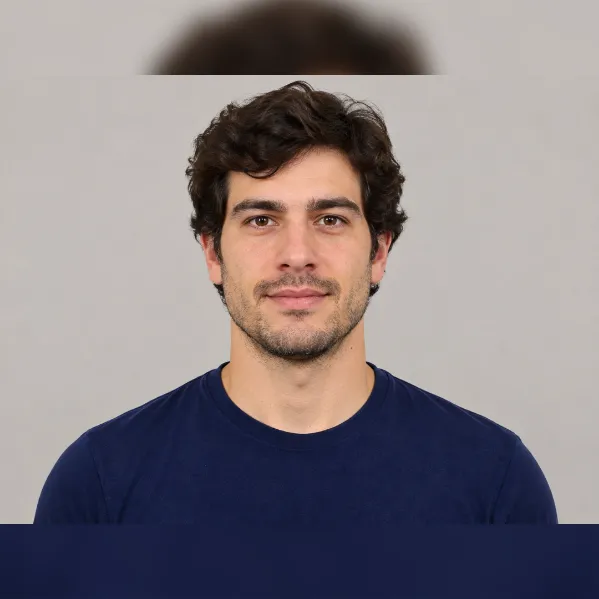
WhatsApp DP Resizer – Fit a Photo into a Square Frame
Make a square WhatsApp profile photo (DP) from any picture — fit the whole photo inside the square with a blurred or coloured background, or fill the square edge to edge.
WhatsApp does not publish an official DP pixel size, so this tool offers commonly used square sizes, with 1080 × 1080 px as the sharpest choice. Everything runs in your browser; nothing is uploaded.
How to Use WhatsApp DP Online
Making a DP takes four quick steps: add your picture, pick how it fills the square, choose a size, and download. There is nothing to install and no account to create, and the tool works the same way on a phone as on a computer.
Prepare Input Files or Images
Add a JPG, PNG, WebP, GIF or BMP file under 25 MB using the file picker, drag-and-drop, or paste. A clear photo with the subject in the middle works best, because WhatsApp displays the DP cropped to a circle in chats — faces near the corners get cut off. A square or portrait photo needs the least adjustment.
Choose Settings and Preview Changes
The tool opens at 1080 × 1080 px in Fit mode, with a blurred copy of your photo as the background. Switch to Fill to crop the photo to the full square instead, or pick a solid background colour. Smaller sizes (640 × 640 px, 500 × 500 px) are available if you want a smaller file. The preview shows exactly what the download will look like.
Download and Verify the Output
Click "Download image" and check the file: it should be square at the size you picked. Open WhatsApp, tap your profile photo, and choose the downloaded file — WhatsApp lets you reposition it in a square crop before saving, and a square file needs no further cropping.
WhatsApp DP: Editing Controls and Preview Options
Fit mode scales your photo to the largest size that fits inside the square and fills the leftover space with a background — blurred photo by default, or a colour you pick, or transparent for a PNG. Fill mode scales the photo until it covers the whole square and crops the overflow evenly from both sides. The size selector changes only the pixel dimensions; the shape is always square.
Recommended Default Settings
Keep the defaults — 1080 × 1080 px, Fit mode, blurred background, JPG at 90% quality — for the sharpest DP. A larger square stays sharper when WhatsApp scales it for different screens. Use Fill mode when the photo is already roughly square and you want it edge to edge with no background showing.
WhatsApp DP: Examples and Use Cases
DPs are usually a portrait, a family photo, a logo, or a favourite picture. A portrait in Fit mode keeps the whole person with a soft blurred background; the same portrait in Fill mode becomes a tight square crop. A wide group photo in Fit mode keeps everyone in frame with background above and below; in Fill mode the people at the edges are cropped out — so Fit is the safer choice for group shots.
Real Input and Output Example
Take a 1200 × 800 px landscape photo. In Fit mode at 1080 × 1080 px it is scaled to 1080 × 720 px and centred, with 180 px of blurred background above and below. In Fill mode it is scaled to 1620 × 1080 px and cropped to 1080 px wide, losing about 270 px from each side. Either way the download is exactly 1080 × 1080 px.
Supported Formats, File Sizes and Browser Limits
The tool accepts JPG, PNG, WebP, GIF and BMP uploads up to 25 MB, and exports to PNG, JPG or WebP. WhatsApp accepts JPG and PNG profile photos; a 1080 × 1080 px JPG at 90% quality is usually 100–300 KB. The output is capped at 8,192 pixels on a side, which the DP sizes are far below.
Image Quality, Size and Compatibility Checks
A DP made from a large photo stays sharp; one made from a small photo and enlarged to 1080 px softens, because the browser can only interpolate between the pixels that exist — this tool does not use AI upscaling. Transparent PNGs stay transparent in PNG and WebP downloads; JPG flattens transparency onto white. WhatsApp compresses the photo again when you upload it, so start from the best quality you can.
Common WhatsApp DP Problems and Fixes
The most common complaint is a face cut off in the circle view — keep the face in the middle of the square, away from the corners. The second is a blurry DP, which means the source photo was too small for 1080 px; start from a larger original, or pick the 500 × 500 px size. The third is a photo that looks fine here but cropped in WhatsApp — that is WhatsApp's own circle display, not this tool, and Fit mode with a centred subject is the best defence.
Troubleshooting Upload, Preview or Export Issues
If a file will not load, it is usually an unsupported type or a corrupt file; the tool names the file in its error message. If the preview looks right but the download looks wrong, check the format: JPG flattens transparency onto white, PNG keeps it. If the download does not start, allow downloads from this site in your browser and try again.
Related Tools and Next Steps
Merge Images, Circle Crop, Crop and Resize Image, Image Resizer, Resize Image for Facebook Profile Without Cropping, Reduce Image Size in KB.
Frequently Asked Questions About WhatsApp DP
Mobile Support, File Privacy and Download Options
This page works in any modern mobile or desktop browser. Your images are processed locally with the Canvas API and never leave your device, and downloads save straight to your phone or computer.
What size should a WhatsApp DP be?
WhatsApp does not publish an official profile-photo pixel size, so there is no "correct" number to hit. A square photo works best — 1080 × 1080 px is a commonly used size that stays sharp on all screens, and 640 × 640 px or 500 × 500 px are fine for smaller files.
Will WhatsApp crop my profile photo?
WhatsApp displays profile photos cropped to a circle in chats, and lets you adjust a square crop when you upload. A square file from this tool needs no further cropping, and keeping the face in the middle of the square keeps it visible in the circle view.
What is the difference between fit and fill for a DP?
Fit keeps your whole photo and fills the leftover space in the square with a blurred copy of the photo or a colour — nothing is cut off. Fill scales the photo until it covers the whole square and crops the overflow, so the edges of a wide or tall photo are lost.
Why does my DP look blurry on WhatsApp?
Two reasons: a small source photo enlarged to 1080 px softens, and WhatsApp compresses the photo again when you upload it. Start from the largest, clearest original you have, and use the 1080 × 1080 px size.
Are my photos uploaded to a server?
No. The DP is made entirely in your browser using the Canvas API. Your photos are never sent to a server, never stored, and disappear when you close or refresh the page.
Keep the profile subject inside a circular preview
A square WhatsApp DP can appear in a circular frame. Leave space around the face or logo and avoid critical text in the corners. A source square with the subject centered gives you more control than expanding a cropped screenshot.
MDN distinguishes fitting a whole image from cropping it to fill a frame.