Photo Signature Merge – Combine Both Images Online
Combine a photo and a signature into a single image in seconds — place the signature below or beside the photo, set its size and position, adjust the gap, and download the result.
1. Photo
Drop a photo here or choose a file. JPG, PNG, WebP, GIF or BMP, under 25 MB.
2. Signature
Drop a signature image here or choose a file. A scan or photo of a signature on white paper works well.
Your images never leave this browser — nothing is uploaded.
Live Preview
Many online forms ask for one combined photo-and-signature image, and this tool builds it right here in your browser: nothing is uploaded, and there is nothing to install.
How to Merge Photo and Signature Online
Merging a photo and a signature takes four quick steps: add the two images, pick a layout, adjust the size and placement, and download. The preview shows exactly what the download will look like, so check it before saving.
Prepare Input Files or Images
Add the photo in the first slot and the signature in the second — click to choose a file, or drag the file onto the slot. JPG, PNG, WebP, GIF and BMP files are accepted, each under 25 MB. A clear, front-facing photo and a signature scanned or photographed on plain white paper give the cleanest result. Before you start, check the size and file-size rules of the form you are filling in, because those rules decide the layout and format you should pick.
Choose Settings and Preview Changes
Pick a layout: photo above the signature, or photo beside the signature. The signature-size slider sets the signature as a percentage of the photo — 50% is a good starting point — and the signature always keeps its own proportions, so it is never stretched. The position control moves the signature left, centre or right (or top, centre or bottom in the side-by-side layout), and the gap control adds space between the two images. The preview updates live as you change any setting.
Download and Verify the Output
Choose a format — PNG for the sharpest signature lines and transparency, JPG for the smallest file — then click "Download merged image". Open the downloaded file and check it against the form's rules: the combined dimensions are shown on the page as "Output size", and the file size is shown in your file manager. If the form also limits the file size in KB, use the resize tool linked below to shrink the file after merging.
Merge Photo and Signature: Layout, Alignment and Spacing Options
The vertical layout — photo on top, signature underneath — is the one most forms expect, because it reads like a signature block under a photograph. The horizontal layout — photo on the left, signature on the right — suits wide slots and side-by-side displays. In the vertical layout the signature width is a percentage of the photo width; in the horizontal layout the signature height is a percentage of the photo height. Either way the signature keeps its proportions, and the photo is drawn at its original size.
Recommended Default Settings
Start with the vertical layout, the signature at 50%, centred, with a 10 px gap and a white background. Export as PNG when the signature has fine lines you want to keep crisp, and as JPG at 90% quality when the file needs to be small. If the form asks for a DPI value, tick "Write DPI into the downloaded file" and pick the DPI the form states — 300 DPI is the usual default.
Image And Signature Merge: Examples and When to Use It
A combined photo-and-signature image is most often needed for online application forms, where a single upload slot expects the photograph and the signature together. It is also handy for identity cards, declaration pages, and any document where a photo and a signature must travel as one file. The same layout controls cover all of these — only the size and format change with the destination.
Real Input and Output Example
Take a 1200 × 800 px photo and a 600 × 200 px signature. In the vertical layout with the signature at 50% and a 10 px gap, the signature is drawn 600 px wide and 200 px tall, and the combined image is 1200 × 1010 px: 800 px of photo, 10 px of gap, and 200 px of signature. Switch to the horizontal layout and the signature is drawn at 50% of the photo height — 400 px tall and 1200 px wide — giving a combined image 2410 × 800 px wide. The "Output size" readout always shows the exact result before you download.
Supported Image Types, Transparency and Export Quality
The tool accepts JPG, PNG, WebP, GIF and BMP uploads and exports to PNG, JPG or WebP. PNG keeps transparency and crisp edges, which suits signatures with fine strokes; JPG produces smaller files for photographs but flattens transparency onto white; WebP gives small files at good quality and supports transparency, though some older software still cannot open it. The background control offers white or transparent — transparent only applies to PNG and WebP downloads, because JPG has no transparency.
Image Quality, Size and Compatibility Checks
The photo is drawn at its original size, so a large photo produces a large combined image — if the result is too big for an upload limit, resize the photo first or export as JPG at a lower quality. Individual files over 25 MB are rejected with a clear message, and the combined canvas is capped at 8,192 pixels on a side. DPI is print metadata only: it does not change the pixel dimensions, and it is written into PNG and JPEG downloads only when the checkbox is ticked.
Common Merge Photo and Signature Problems and Fixes
The most common surprise is a signature that looks too big or too small — fix it with the size slider, which changes only the signature, never the photo. A signature that appears cut off means the source signature image itself has the signature near its edge; crop the source image first. If the download does not start, check that your browser is not blocking downloads from this site, then try again.
Troubleshooting Upload, Preview or Export Issues
A file that refuses to load is usually an unsupported type or a damaged file — the tool names the file and says what is wrong. The workspace only appears once both a photo and a signature are loaded; if it stays hidden, one of the two slots is still empty. Very large photos on low-memory phones can be slow to process — try a smaller source photo, or one image at a time.
Related Tools and Next Steps
Merge Images, Resize Signature, Passport Photo Maker, Image Resizer, Reduce Image Size in KB.
Frequently Asked Questions About Merge Photo and Signature
Mobile Support, File Privacy and Download Options
This page works in any modern mobile or desktop browser. Your images are processed locally and never leave your device, and the merged file downloads straight to your phone or computer.
How do I merge a photo and signature into one image?
Add the photo in the first slot and the signature in the second, pick a layout (photo above the signature, or beside it), set the signature size and position, then download. The preview shows the combined image before you save it.
What size should the signature be compared to the photo?
There is no single right answer — it depends on the form you are filling in. 50% of the photo width is a good starting point for the vertical layout: the signature is clearly readable without dominating the photo. Check the preview, and check the form's own size rules before uploading.
Should I download as PNG or JPG?
PNG keeps signature lines crisp and supports a transparent background, so it is the safer choice when quality matters. JPG makes smaller files, which helps when a form limits the file size. If the form states a format, use that one.
Are my photo and signature uploaded to a server?
No. Merging happens entirely in your browser using the Canvas API. Your images are never sent to a server, never stored, and disappear when you close or refresh the page.
Why is the merged image so large?
The photo is drawn at its original size, so a large phone photo produces a large combined image. Resize the photo before merging, or export as JPG at a lower quality, to bring the file size down.
Leave a clear seam between the photo and signature
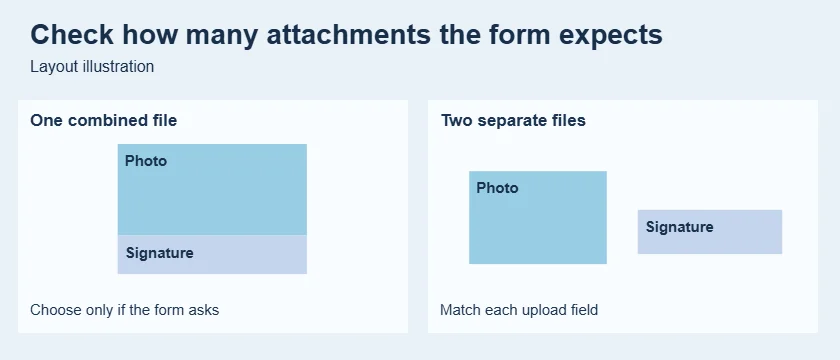
Use the photo signature merge tool to align both parts according to the receiving form. Keep every stroke visible and inspect the file at its intended size before uploading. If the form wants two separate files, export the inputs individually.

Photo signature merge for a single attachment
Use a single merged image when the form asks for the photograph and signature together. If the portal displays separate photograph and signature fields, save two separate files. In a merged file, leave room under the face and inspect the fine signature strokes at the actual output size.
The GATE instructions show an application that requires separate photo and signature uploads.