Passport Photo Maker – Crop, Resize and Export Photos
Make a passport-size photo online in seconds — crop your photo to 2 × 2 inch, 3.5 × 4.5 cm, 600 × 600 px or another preset, centre the face by dragging it inside the frame, and target a file size of 100 KB or 200 KB.
Drop a photo here, paste it, or choose a file
JPG, PNG, WebP, GIF and BMP, under 25 MB. Use a photo taken against a plain background, facing the camera. Your photo never leaves this browser — nothing is uploaded.
Position the photo
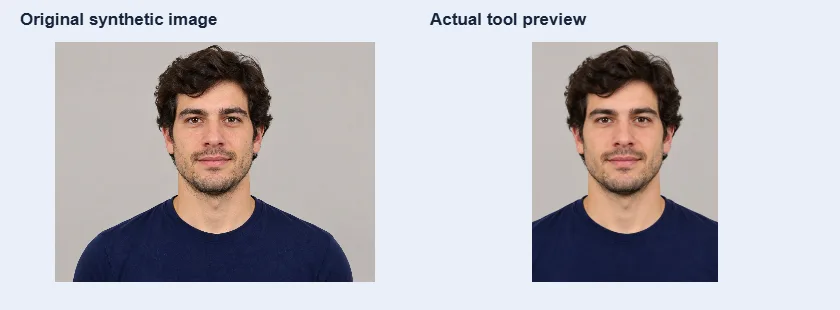
Drag the photo inside the frame to centre the face, and use the zoom slider to fit it. The frame shows exactly what the download will contain. There is no automatic face detection — you position the photo yourself.
Everything runs in your browser, so your photo is never uploaded.
How to Use Passport Photo Maker Online
Making a passport photo takes four quick steps: add a photo taken against a plain background, pick a size preset, centre the face in the frame, and download. The frame shows exactly what the download will contain, and the file-size result shows the actual KB before you upload anywhere.
Prepare Input Files or Images
Add a JPG, PNG, WebP, GIF or BMP file under 25 MB using the file picker, drag-and-drop, or paste. Start from a clear, front-facing photo taken against a plain background — this tool crops and resizes, but it does not remove or replace backgrounds, so a busy background stays busy. Before you start, check the exact size, DPI and file-size limit your form asks for.
Choose Settings and Preview Changes
Pick a dimension preset — 2 × 2 inch is the default — or set a custom size in cm, mm, inches or pixels. Drag the photo inside the frame to centre the face and use the zoom slider to fit it; the frame keeps the preset's aspect ratio, so nothing is stretched. The background-colour control fills the export canvas behind the photo and is visible only where the photo itself is transparent — it does not change the background of your photo.
Download and Verify the Output
With KB targeting on, click "Check file size" to see the actual size the tool can reach at the exact photo dimensions, or download directly — the result line shows the actual KB and whether the target was reached. Check the downloaded file against your form's rules: the dimensions are shown on the page as "Output size", and the file size is shown in your file manager. If the target could not be reached, the result line says so plainly and shows the smallest size achieved.
Passport Photo Maker: Editing Controls and Preview Options
The crop frame is the heart of the tool: it always shows the preset's aspect ratio, and dragging the photo moves it under the frame while zooming scales it — the face stays centred by your hand, not by any automatic detection. Dimension presets cover the common ID sizes in inches (2 × 2, 1 × 1, 3 × 4, 4 × 6), centimetres (3.5 × 4.5, 4.5 × 3.5) and pixels (600 × 600), and the custom size covers anything else. The optional name and date-of-birth strip adds a white band with your text under the photo — useful where a form asks for it, but it makes the download taller than the preset size.
Recommended Default Settings
Start with the 2 × 2 inch preset at 300 DPI (600 × 600 px), a white background, JPG format, and KB targeting on at 100 KB. Keep "Write DPI into the downloaded file" ticked — ID photos are print-oriented, and the DPI value is part of what a form checks. Only add the name and date-of-birth strip when your form explicitly asks for it.
Passport Size Photo Compressor: Examples and When to Use It
Most forms limit both the dimensions and the file size of a passport photo — a common pair is a 2 × 2 inch photo under 100 KB or 200 KB. That is why KB targeting is built into this tool rather than bolted on: set the target and the tool searches for the highest JPEG or WebP quality that fits at the exact photo size, without ever changing the dimensions. If the photo cannot fit the target even at the lowest quality, the result line says so and shows the smallest size it achieved, so you know before you upload.
Real Input and Output Example
Take a 600 × 900 px portrait photo. With the 2 × 2 inch preset at 300 DPI the crop frame is square, and the download is 600 × 600 px. With KB targeting set to 100 KB the tool encodes the same 600 × 600 px photo at decreasing quality until it fits — typically around 80–90% quality for a clean portrait, with the actual KB shown in the result line. Switch the preset to 3.5 × 4.5 cm at 300 DPI and the same photo downloads at 413 × 531 px instead.
Supported Formats, File Sizes and Browser Limits
The tool accepts JPG, PNG, WebP, GIF and BMP uploads and exports to JPG, PNG or WebP. JPG is the usual choice for passport photos: small files, accepted everywhere, and the format the KB search works best with. PNG keeps transparency but makes larger files and ignores the quality setting, so a PNG target only fits when the image is already small enough. WebP gives small files at good quality and supports transparency, though some older software still cannot open it.
Image Quality, Size and Compatibility Checks
The crop never enlarges the photo beyond what the frame shows: if the source photo is smaller than the target pixel size, the download is upscaled and softens — start from the largest original you have. DPI is print metadata only: it converts cm, mm and inch presets to pixels (px = cm × DPI ÷ 2.54, px = mm × DPI ÷ 25.4, px = inches × DPI) and, when the checkbox is ticked, is written into PNG and JPEG downloads. Files over 25 MB are rejected, and the output is capped at 8,192 pixels on a side.
Common Passport Photo Maker Problems and Fixes
The most common surprise is a background that did not change — this tool does not remove or replace backgrounds, so a photo taken against a coloured wall keeps that wall. The fix is a new photo against a plain background, not a different setting. A face that looks cut off means the frame was positioned wrong: drag the photo to centre the face and check the frame before downloading. If the KB target cannot be reached, the usual fixes are a larger target, JPG instead of PNG, or a smaller pixel size.
Troubleshooting Upload, Preview or Export Issues
A file that refuses to load is usually an unsupported type or a damaged file — the tool names the file in its error message. If the frame shows a grey box instead of the photo, the image is still loading or failed to decode; try the file again. If the download does not start, allow downloads from this site in your browser and try again. Very large photos on low-memory phones can be slow to process — try a smaller source photo.
Related Tools and Next Steps
Merge Images, 4.5 cm x 3.5 cm Photo Size, Merge Photo and Signature, Resize Signature, Image Resizer, Reduce Image Size in KB.
Frequently Asked Questions About Passport Photo Maker
Mobile Support, File Privacy and Download Options
This page works in any modern mobile or desktop browser. Your photo is processed locally and never leaves your device, and the download saves straight to your phone or computer.
How do I make a passport size photo online?
Add a photo taken against a plain background, pick a size preset (2 × 2 inch, 3.5 × 4.5 cm, 600 × 600 px or another), drag the photo inside the frame to centre the face, then download. The frame shows exactly what the download will contain.
Can I make a passport photo under 100 KB?
Yes — KB targeting is on by default at 100 KB. The tool searches for the highest JPEG or WebP quality that fits 100 KB at the exact photo size, and the result line shows the actual KB. If the photo cannot fit even at the lowest quality, the result line says so and shows the smallest size achieved.
Does this tool change my photo background to white or blue?
No. The background-colour control fills the export canvas behind the photo and is visible only where the photo itself is transparent — it does not remove or replace the background of your photo. Use a photo already taken against a plain background of the colour you need.
What size is a 2 × 2 inch photo in pixels?
At 300 DPI, 2 × 2 inches is 600 × 600 px (px = inches × DPI). At 150 DPI it would be 300 × 300 px. The conversion note under the size controls always shows the pixel size at the DPI you have chosen.
Are my photos uploaded to a server?
No. Cropping and resizing happen entirely in your browser using the Canvas API. Your photos are never sent to a server, never stored, and disappear when you close or refresh the page.
Leave room around the face in the passport crop
Use the passport photo maker to frame a source that already matches the applicable background and lighting requirements. The background setting fills exposed or transparent canvas areas. Review the saved file against the current authority guidelines for that application.
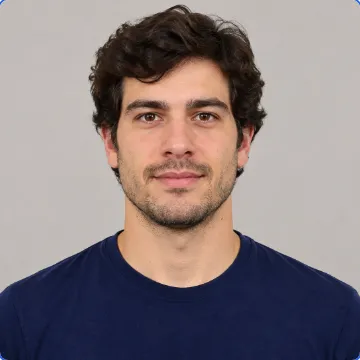
Preview the portrait crop before measuring the saved dimensions
If the photo instructions specify a 35 by 45 mm portrait, select that preset and inspect the sides of the frame before saving. The displayed comparison shows how the crop changes the synthetic source. The issuing authority determines how much space must remain around the head.