
MP4 to JPG Converter – Extract Still Frames from Video
Pull still frames out of a video as JPG or PNG images — upload an MP4, WebM or MOV file, pick one timestamp or capture a frame every few seconds, and download each frame as a separate image at the videou2019s native resolution.
Drop a video here, or choose a file
One MP4, WebM or MOV video at a time, up to 100 MB. Frames are extracted at the video’s native resolution. Your video never leaves this browser — nothing is uploaded.
Whether a video opens depends on your browser’s codecs — H.264 MP4 and VP8/VP9 WebM work everywhere, but HEVC/H.265 support varies. A video the browser cannot decode is reported clearly, never silently.
Everything runs in your browser, so your video is never uploaded.
How to Extract JPG Frames from an MP4
Extracting frames takes three quick steps: add your video, pick the moments to capture, and download the images. There is nothing to install and no account to create, and the tool works the same way on a phone as on a computer.
Prepare Input Files or Images
Click "Choose a video" to pick a file from your device, or drag it onto the drop area. One MP4, WebM or MOV video at a time, up to 100 MB. The player below shows your video so you can scrub to the exact moment you want before you extract. Frames are captured at the videou2019s native resolution — a 1920 × 1080 video gives 1920 × 1080 images.
Choose Settings and Preview Changes
Pick an extraction mode: "One timestamp" captures a single frame at the second you type, and "Every few seconds" captures a frame every N seconds from the start of the video (batches are capped at 60 frames). Pick the format — JPG for photographs, PNG for crisp text and graphics — and the JPEG quality if you chose JPG. The thumbnails below show every extracted frame with its timestamp and size.
Download and Verify the Output
Click "Extract frames", wait for the thumbnails, then download a single frame with its own button or all of them at once with "Download all frames". Each frame downloads as a separate image file, one after another — there is no ZIP file, and your browser may ask permission to allow multiple downloads. Check a downloaded image: its pixel dimensions should match the videou2019s resolution exactly.
MP4 to JPG: Input and Output Format Options
Input is MP4, WebM or MOV — whatever the browser can decode. H.264 MP4 and VP8/VP9 WebM work in all modern browsers; HEVC/H.265 support varies by browser and operating system, and a video the browser cannot decode is reported clearly. Output is JPG or PNG at the videou2019s native resolution: JPG is smaller and suits photographs (with a quality slider, 90% by default), PNG is lossless and suits text, diagrams and screenshots. The timestamp is exact to a tenth of a second; the interval mode starts at 0 seconds and steps by the interval you chose.
Recommended Default Settings
For most jobs, keep JPG at 90% quality and capture one timestamp: sharp enough for sharing and small enough to send. Use PNG when the frame is mostly text or a diagram and you want the edges perfectly crisp. For a contact sheet of a short clip, use the interval mode at 1 second — a 30-second video gives 30 frames.
MP4 to JPG: Examples and Use Cases
People extract frames for everyday jobs: grabbing a thumbnail from a video, saving a single moment as a photo, pulling a diagram or a slide out of a recording, or making a contact sheet of a short clip. In each case the win is the same — one moment becomes one ordinary image file that opens anywhere, at the full resolution of the video.
Real Input and Output Example
Take a 3-second 320 × 240 px MP4 video. Capturing one frame at 1.0 second gives a single 320 × 240 px JPG. Capturing every 1 second gives three frames — at 0.0s, 1.0s and 2.0s — each 320 × 240 px, named with their timestamps so you can tell them apart. At PNG the same three frames are larger files but pixel-perfect. The filenames follow the video name, for example "clip-frame-1-at-0p00s.jpg".
Supported Formats and File Compatibility
The tool accepts MP4, WebM and MOV video files up to 100 MB, and exports JPG or PNG images at the videou2019s native resolution — dimensions are never changed by extracting. Batches are capped at 60 frames per extraction, and the output is capped at 8,192 pixels on a side, which is well beyond what browsers handle reliably. The downloaded images are ordinary JPG or PNG files that open in any viewer, editor or upload form.
Image Quality, Size and Compatibility Checks
A frame is only as sharp as the video it came from — extracting from a low-resolution video cannot add detail that was never there. JPG quality below 90% shrinks the file quickly but softens fine text, so keep quality high for text-heavy frames, or switch to PNG. The extracted frames were verified with a real image parser during testing, checking the format, the dimensions and the pixel colours against the source video.
Common MP4 to JPG Problems and Fixes
The most common problem is a video that will not load: the browser cannot decode its codec. H.264 MP4 works everywhere; HEVC/H.265 (common on newer iPhones) varies — the fix is to convert the video to H.264 MP4 first, in your phone or video software. Missing downloads usually mean the browser blocked multiple downloads: allow them for this site and try again, or use the per-frame "Download this frame" buttons. A blurry frame usually means the video itself was low-resolution or the moment was mid-motion — try a nearby timestamp.
Troubleshooting Upload, Preview or Export Issues
If a file will not load, check that it is an MP4, WebM or MOV under 100 MB, and that it plays in your browser — a file with the wrong extension or damaged data cannot be used. If extraction stops partway, the video may be damaged at that timestamp; try a different timestamp or interval. If a frame is black, the video may have a black frame at that exact moment (a fade or a cut) — nudge the timestamp by a tenth of a second.
Related Tools and Next Steps
Merge Images, Convert Video to GIF, GIF Maker, PDF to JPG, Image Resizer.
Frequently Asked Questions About MP4 to JPG
Mobile Support, File Privacy and Download Options
This page works in any modern mobile or desktop browser with JavaScript enabled: tap "Choose a video" to pick a clip from your phone, or drag one in on a computer. Your video is processed locally and never uploaded, and it disappears when you close or refresh the page. Each frame downloads as a separate image, straight to your device.
What resolution are the extracted frames?
The videou2019s native resolution — a 1920 × 1080 video gives 1920 × 1080 images, and a 320 × 240 video gives 320 × 240 images. Dimensions are never changed by extracting. A frame is only as sharp as the video it came from, so extracting from a low-resolution video cannot add detail.
Can I extract frames every few seconds?
Yes — switch to "Every few seconds" and set the interval. A frame is captured every N seconds from the start of the video, up to 60 frames per batch. For a long video, use a larger interval: a 10-minute video at 10-second intervals gives 60 frames.
Do the frames download as a ZIP file?
No. Each frame downloads as a separate JPG or PNG file, one after another, so you can keep the ones you want and ignore the rest. Your browser may ask permission to allow multiple downloads — allow it, or use the per-frame "Download this frame" buttons.
Why wonu2019t my video load?
The most likely cause is the codec: this browser may not be able to decode it. H.264 MP4 and VP8/VP9 WebM work in all modern browsers, but HEVC/H.265 (common on newer iPhones) varies by browser and operating system. Convert the video to H.264 MP4 first, then try again.
Are my videos uploaded to a server?
No. The video is decoded and sampled entirely in your browser using the HTML video element and canvas. Nothing is sent to a server, nothing is stored, and your video disappears when you close or refresh the page.
Pick a still frame between fast movements
When making an MP4 to JPG still, scrub back and forth around a frame where the subject is momentarily sharp. Inspect the image for motion blur and compression blocks before choosing it as a thumbnail.
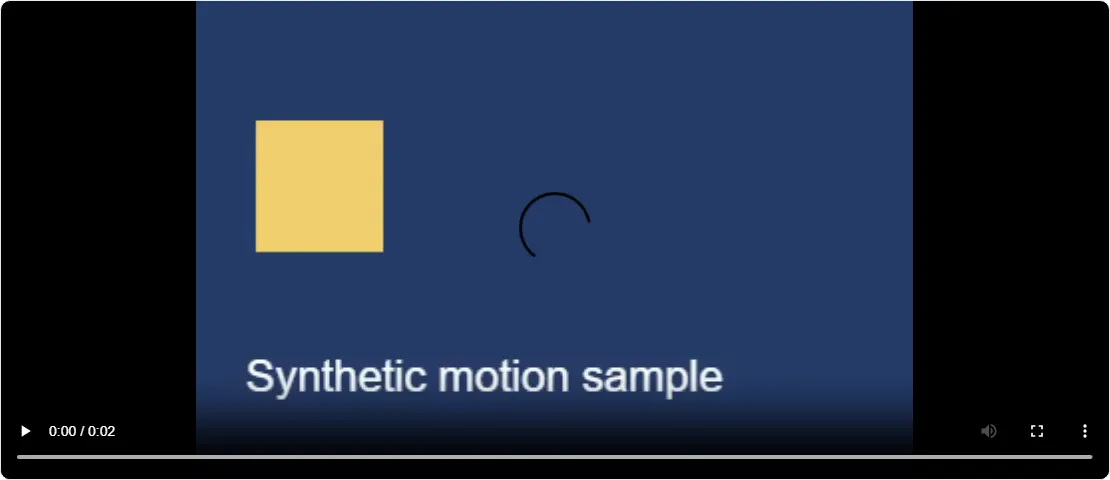
Distinguish the video frame from an on-screen screenshot
The MP4 to JPG workspace draws a selected decoded frame. A screenshot can also include the player controls and whatever scale the playback window uses. Review the frame's own dimensions and choose another point if the intended subject moves out of view while seeking.
MDN shows how a video frame can be drawn directly onto a canvas.