
Add Text to Image Online – Place Captions and Labels
Add text to an image online in seconds — put a caption, a label, a meme line or a title on any photo, with control over the font, size, colour, position, rotation and opacity.
Drop an image here, paste it, or choose a file
JPG, PNG, WebP, GIF and BMP, up to 25 MB. Your image never leaves this browser — nothing is uploaded.
Live Preview
No regions yet — drag on the preview above to draw one.
Uncheck to keep descriptive tags from a JPEG when saving as JPEG. Location data and embedded previews are always removed.
Everything runs in your browser, so your photos are never uploaded. Type your text, place it, and download the result.
How to Use Add Text to Image Online
Adding text takes three quick steps: add your picture, type the text and place it, and download. There is nothing to install and no account to create, and the tool works the same way on a phone as on a computer.
Prepare Input Files or Images
Click "Choose an image" to pick a file from your device, drag it onto the drop area, or copy an image and paste it straight into the page. JPG, PNG, WebP, GIF and BMP files are accepted, and each file must be under 25 MB. Text reads best on photos with a fairly plain area to sit on — a sky, a wall, or a dark corner — so pick the position to match the picture.
Choose Settings and Preview Changes
Type your text, pick a font, and set the size in pixels — the size is absolute, so 48 px on a 1200 px-wide photo is much smaller, relative to the picture, than 48 px on a 400 px-wide one. Choose one of nine positions (top, middle or bottom × left, centre or right), rotate the text if you want it at an angle, and lower the opacity for a subtle label. The preview updates as you type.
Download and Verify the Output
Click "Download image with text" to save the result. The download name starts with "text-" and your original file is never changed. Open the downloaded file at full size and check the text: it should be sharp, readable, and placed where you expect — small text that looks fine in the preview can be hard to read on the full image.
Add Text to Image: Editing Controls and Preview Options
Five fonts are offered: sans-serif (clean and modern), serif (classic and formal), monospace (typewriter-style, even spacing), cursive (handwriting-style) and fantasy (decorative). All five come from the device viewing the page, so the exact look varies slightly between a phone, a Windows PC and a Mac — the preview shows what your device will draw, and the download uses the same font. Text is drawn in a single line, centred or aligned to the edge you chose, with a small margin from the picture's edge.
Recommended Default Settings
For a caption, use sans-serif at about 5% of the image width, white, bottom centre, full opacity. For a label on a busy photo, drop the opacity to 80% so the text sits in the picture rather than on top of it. For a meme, use a large size (10% of the width or more) in the middle, and rotate it a few degrees for a casual feel.
Add Text to Image: Examples and Use Cases
People add text to images for captions, memes, labels, titles and diagrams. A caption names the place or the moment in a photo. A label points out a part of a diagram or a product. A meme line turns a picture into a joke. A title across the top turns a photo into a poster or a thumbnail. The same controls cover all of them — only the words and the placement change.
Real Input and Output Example
Take a 1200 × 800 px holiday photo. Type "Lisbon, 2026" in sans-serif at 48 px, white, bottom centre, and the download is the same photo with a clean caption along the bottom edge. Type the same words at 120 px in the middle centre, rotated -8°, and it becomes a poster-style title. The picture never changes — only the text layer on top of it.
Supported Formats, File Sizes and Browser Limits
The text tool accepts JPG, PNG, WebP, GIF and BMP uploads and exports to PNG, JPG or WebP. Dimensions are never changed — a 1200 × 800 px image stays 1200 × 800 px; only the text is added. The output is capped at 8,192 pixels on a side, and the text itself is limited to 200 characters.
Image Quality, Size and Compatibility Checks
Text is drawn directly onto the pixels, so it is baked into the downloaded file — it cannot be edited or removed afterwards, so keep your original if you might want to change the wording. PNG export keeps text edges perfectly crisp; JPG export at 90% is fine for photos but can soften very small text slightly. Text on a transparent PNG keeps the picture's transparency.
Common Add Text to Image Problems and Fixes
The most common problem is text that is hard to read — white text on a bright sky, or black text on a dark background. Pick a colour that contrasts with the area behind the text, or move the text to a plainer part of the photo. The second problem is text that is too small: remember the size is in absolute pixels, so a big photo needs a big number.
Troubleshooting Upload, Preview or Export Issues
A file that refuses to load is usually an unsupported type or a damaged file — the tool names the file and says what is wrong. If the text does not appear, check that the text box is not empty and the opacity is not at its minimum. If the font looks different from the preview on another device, that is expected — fonts come from the device, so the download matches the device that made it. If a download does not start, check that your browser is not blocking downloads from this site.
Related Tools and Next Steps
Merge Images, Watermark Images, Add Name & DOB on Photo, Overlay Images.
Frequently Asked Questions About Add Text To Image
Mobile Support, File Privacy and Download Options
The text tool works in any modern mobile or desktop browser with JavaScript enabled: tap "Choose an image" to pick a photo from your phone, or drag a file in on a computer. Your pictures are processed locally and never uploaded, and they disappear when you close or refresh the page. The download saves straight to your device.
Can I add more than one line of text?
The text box takes a single line of up to 200 characters. For a second line, download the first result and run it through the tool again with the new text in a different position — each pass adds one more line to the picture.
Why does the font look different on another device?
The fonts come from the device viewing the page (sans-serif, serif, monospace, cursive, fantasy are system font families, not downloaded files). The exact letterforms vary between phones, Windows PCs and Macs, so a download made on one device uses that device's fonts. The preview always shows what your device will draw.
Can I remove or edit the text afterwards?
No — the text is drawn onto the pixels, so it is part of the downloaded image, not a separate layer. Keep your original file if you might want to change the wording later, and re-run the tool from the original.
What is the difference between adding text and watermarking?
Adding text puts one caption, label or title on one image. Watermarking (on the watermark page) is built for branding and protection: it stamps the same text or logo on one image or a whole batch, with tiling across the picture and a size that scales to each photo. Use this page for captions and the watermark page for branding.
Place text away from the edges
When you add text to image content for a thumbnail, leave room around long words and check the image after downscaling. Use a clean margin or darker backing where the source varies in brightness.
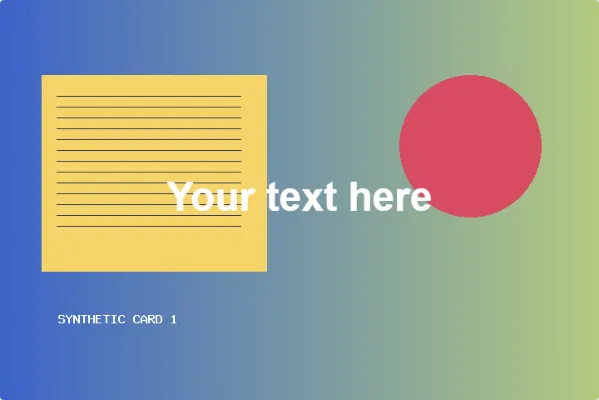
Preview a centered label at its final size
Start with a short label and place it over an area where the color is consistent. Increase the size if the strokes disappear in a thumbnail. The example places a synthetic label in the center and shows how much of the underlying image it covers.

Choose a text color that remains readable over busy areas
When you add text to an image, check the lightest and darkest areas behind the words. Use an opaque or semi-opaque backing strip if the photo has no single color with enough contrast. Confirm by viewing the export at the size it will be shown.
W3C explains the contrast criterion for text rendered into images.