
JPG to MP4 – Create a Video from One or More JPG Files
Turn one JPG photo — or a set of them — into a video file: add your photos, set how long each one shows, and download the finished video.
Drop photos here, or choose files
One or more JPG, PNG, WebP or GIF images, up to 50 photos and 25 MB each. Each photo is shown for the number of seconds you set. Your photos never leave this browser — nothing is uploaded.
Output format depends on your browser: current browsers record MP4 or WebM. The format this browser will use is shown below before you record, and the download filename always matches it.
Everything runs in your browser, so your photos are never uploaded. One honest note up front: the video format depends on your browser — current browsers record MP4 or WebM — and the page tells you which format your browser will produce before you record; the download filename always matches it.
How to Convert JPG to MP4 and Export a Video
Converting JPG photos to a video takes four quick steps: add your photos, set the timing, choose the video size, and record then download. There is nothing to install and no account to create, and the tool works the same way on a phone as on a computer.
Prepare Input Files or Images
Click "Choose JPG images" to pick files from your device, or drag them onto the drop area. One or more JPG, PNG, WebP or GIF images, up to 50 photos and 25 MB each. A single photo makes a short still video — useful for a profile clip or a looping background — while several photos make a simple sequence. For the sharpest result, start from the highest-resolution version of each photo: shrinking a large photo keeps it crisp, while enlarging a tiny one cannot add detail that was never there.
Choose Settings and Preview Changes
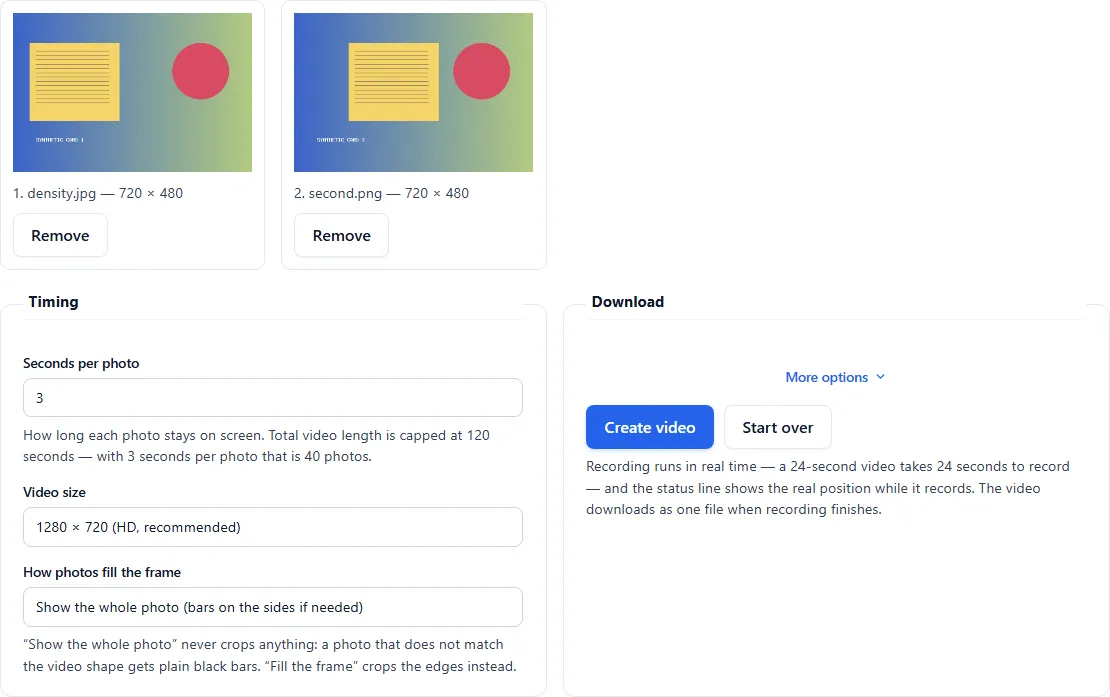
Set "Seconds per photo" — 3 seconds is a good default for a sequence, and 5–10 seconds suits a single photo you want to linger on. Pick the video size: 1280 × 720 is the recommended default, 1920 × 1080 is Full HD, and 854 × 480 makes a smaller file. Pick how photos fill the frame: "Show the whole photo" never crops anything (a photo that does not match the video shape gets plain black bars), while "Fill the frame" crops the edges. The thumbnails show your photos in video order — drag them into order before you record.
Download and Verify the Output
Click "Create video" — recording runs in real time, so a 24-second video takes 24 seconds, and the status line shows the real position (current photo and elapsed time) while it records. When recording finishes, the summary shows the exact duration, dimensions, format and file size — then click "Download video". The file downloads as one video, in the format shown on the page (.mp4 or .webm). Open it in any player and check that it shows your photos, in the right order, for the right length.
JPG to MP4: Input and Output Format Options
Input is JPG, PNG, WebP or GIF images — whatever the browser can decode. Output is a video file recorded with the browser's MediaRecorder: MP4 with H.264 video, or WebM with VP8 or VP9 video — whichever the browser supports. The tool detects the format with MediaRecorder.isTypeSupported() and shows it on the page before recording, so there is no surprise at download time. Video is recorded at 30 frames per second; the total length is capped at 120 seconds.
Recommended Default Settings
For most jobs, keep 3 seconds per photo, 1280 × 720, and "Show the whole photo": a video that looks like your photos and stays a reasonable size. For a single-photo clip, use 5 seconds per photo. For the smallest file, use 854 × 480. For the sharpest result, use 1920 × 1080 — but expect a larger file, and a longer wait while it records.
JPG to MP4: Examples and Use Cases
People turn JPG photos into video for everyday jobs: making a short clip from a holiday photo to share in a chat, turning a product photo into a moving post for social media, joining a few screenshots into one video for a tutorial, or making a still-image video to play on a screen at an event. In each case the win is the same — a photo that plays as a video, opening in any player, with no editing software and no upload.
Real Input and Output Example
Take three 800 × 600 px JPG photos at 3 seconds each, 1280 × 720 output. The video is 9 seconds long: each photo fills the frame for 3 seconds in order, with plain black bars top and bottom (because 800 × 600 is a different shape from 1280 × 720). Depending on the browser, the download is a 9-second .mp4 or .webm file. The summary after recording always shows the exact duration and file size, so you can try settings and compare.
Supported Formats and File Compatibility
The tool accepts JPG, PNG, WebP and GIF images up to 25 MB each, 50 photos per video, and a total video length of 120 seconds. Output is MP4 or WebM (whichever the browser records) at 30 frames per second, up to 1920 × 1080. MP4 plays everywhere — phones, social apps, video editors. WebM plays in all modern browsers and most players, but some older video editors and phones cannot open it; if you need MP4 and your browser recorded WebM, convert the file with a converter afterwards.
Image Quality, Size and Compatibility Checks
A video is only as sharp as the photos it came from — a video from low-resolution photos cannot add detail that was never there. A video that looks blurry usually means the source photos were small: re-make it from the originals. A video that will not play in your editor is usually a WebM file in an editor that only accepts MP4 — check the file extension, and convert the file if you need MP4.
Common JPG to MP4 Problems and Fixes
The most common surprise is the output format: some browsers record WebM, not MP4 — the page states the format before you record, and the filename tells you afterwards. If you need MP4 and your browser records WebM, convert the file afterwards. The next most common problem is the 120-second cap: shorten the per-photo time or use fewer photos. A video that plays the photos in the wrong order means the thumbnails were in the wrong order — drag them into order before clicking "Create video". A recording that seems stuck is usually just running in real time: a 60-second video takes a full minute, and the status line shows the real position.
Troubleshooting Upload, Preview or Export Issues
If a file will not load, check that it is a JPG, PNG, WebP or GIF under 25 MB, and that it opens in your browser — a file with the wrong extension or damaged data cannot be used. If "Create video" does nothing, your browser may not support MediaRecorder at all (very old browsers) — the page says so clearly; update the browser and try again. If the download does not start, check that your browser is not blocking downloads from this site, then try again.
Related Tools and Next Steps
Merge Images, Photos to Video, Slideshow Maker, Convert Video to GIF, MP4 to JPG, GIF Maker.
Frequently Asked Questions About JPG to MP4
Mobile Support, File Privacy and Download Options
This page works in any modern mobile or desktop browser with JavaScript enabled: tap "Choose JPG images" to pick photos from your phone, or drag them in on a computer. Your photos are processed locally and never uploaded, and they disappear when you close or refresh the page. The video downloads as one file, straight to your device.
Will I get an MP4 file?
It depends on your browser: current browsers record MP4 or WebM. The page shows which format your browser will produce before you record, and the download filename always matches it (.mp4 or .webm). If you need MP4 and your browser records WebM, convert the file afterwards.
How long can the video be?
Up to 120 seconds in total. With 3 seconds per photo that is 40 photos; with 5 seconds per photo it is 24. If your video would be longer, the tool says so and asks you to shorten the per-photo time or use fewer photos.
Can I add music to the video?
Not on this page — this tool makes silent videos from photos. To add music, use the Slideshow Maker, which accepts a music file you upload yourself and mixes it into the video.
Does the video keep the sound from my photos?
Photos have no sound, so there is nothing to keep — the video is silent. Live Photos and GIFs are treated as still images: the first frame is used and any motion or sound is dropped.
Are my photos uploaded to a server?
No. The photos are drawn and recorded entirely in your browser. Nothing is sent to a server, nothing is stored, and your photos disappear when you close or refresh the page.
Confirm the export container before publishing
For JPG to MP4, choose the order and duration of the stills and inspect the first transition. Verify the saved container against the target application's format requirements. A filename change alone cannot convert one video container into another.
Check MP4 and WebM compatibility with the destination
Play the saved file in the app where you plan to publish it. The filename extension describes the container, while codec support controls whether the app can decode it. Check the exported format reported by your browser before sharing.